
You open the lid, and the same three things are broken again. The network drive is gone from Finder, the VPN client shows "disconnected," and that one menu bar app needs a restart before it behaves. If you want to run a script when your Mac wakes from sleep and fix all of that automatically, macOS will let you, just not with a checkbox.
Below are the methods that still work on macOS 26 Tahoe and macOS 27 Golden Gate (November 2026), what each one actually listens for, and which one to pick.
What You Need
A Mac on a recent macOS version, Homebrew if you go the SleepWatcher route, and the thing you want to run: a shell script, an AppleScript, or an app to relaunch.
Method 1: SleepWatcher
SleepWatcher is a small command-line daemon by Bernhard Baehr. It sits in the background and runs a command when the Mac goes to sleep or wakes up. It is old (the author's own page calls version 2.2.1 "quite old now"), but it is still the simplest answer to this exact question.
Step 1: Install it with Homebrew
brew install sleepwatcher
The Homebrew formula is at version 2.2.1 and has bottles for Apple Silicon on Big Sur through Tahoe and Golden Gate. The formula builds a native binary, so you don't need Rosetta.
Step 2: Write your wake script
The Homebrew service looks for two files in your home folder: ~/.wakeup (runs on wake) and ~/.sleep (runs before sleep). You only need the one you care about.
#!/bin/bash
# ~/.wakeup - runs every time the Mac wakes

echo "$(date) woke" >> "$HOME/wake.log"

sleep 5   # give Wi-Fi a few seconds to reconnect

/usr/bin/osascript -e 'set volume output muted true'
/usr/bin/killall "FlakyApp"
/usr/bin/open -a "FlakyApp"
Swap the last three lines for whatever you need. Anything you can do from Terminal works here.
Step 3: Make it executable
chmod +x ~/.wakeup
Skip this and nothing happens. This is the most common reason a wake script "doesn't run."
Step 4: Start the service
brew services start sleepwatcher
Under the hood, Homebrew registers a launch agent that runs sleepwatcher -V -s ~/.sleep -w ~/.wakeup and keeps it alive. Check it with brew services list.
One tip: use full paths inside the script (/usr/bin/open, /opt/homebrew/bin/whatever). Your script runs outside your normal shell, so it may not see the PATH your Terminal sees, and anything installed by Homebrew lives under /opt/homebrew on Apple Silicon.
A catch on Apple Silicon: SleepWatcher's display-specific options (display sleep, display wake, and dim) don't work on Apple Silicon Macs, according to the author. System sleep and wake do.
Method 2: Hammerspoon
If you already use Hammerspoon for window management or hotkeys, add a wake handler to it instead of installing another daemon.
Hammerspoon's hs.caffeinate.watcher reports a list of power and screen events. The three that matter here are systemDidWake ("the system woke from sleep"), screensDidWake ("the displays have woken from sleep") and screensDidUnlock ("the screen was unlocked"). Put this in ~/.hammerspoon/init.lua:
-- keep a global reference so the watcher stays alive
wakeWatcher = hs.caffeinate.watcher.new(function(event)
  if event == hs.caffeinate.watcher.systemDidWake then
    hs.execute("/Users/you/bin/on-wake.sh")
  elseif event == hs.caffeinate.watcher.screensDidUnlock then
    hs.alert.show("Welcome back")
  end
end)
wakeWatcher:start()
Reload the config from the Hammerspoon menu. The nice part is choice: system wake, display wake and unlock are three different moments, and you can react to each.
Method 3: Apps With a Wake Trigger
A few GUI apps have a wake trigger built in.
Keyboard Maestro has a trigger simply called Wake: "executes the macro when your Mac wakes from sleep." Older versions called it System Wake. There's a matching Sleep trigger too. Keyboard Maestro has to be running to see the wake, which it normally is.
In BetterTouchTool, look for "After Mac Wakes From Sleep." It sits next to "Before Mac Goes to Sleep" and an "After Unlock" trigger. BTT's own forum has threads about the wake trigger misfiring or not firing after a long sleep, and some of them point at the "Restart BTT after wake from sleep" setting. If the trigger acts up, try the unlock trigger instead.
Then there's EventScripts from Mousedown Software. It runs AppleScripts, shell scripts and Automator workflows on system events, grouped into categories like "Screen Events" and "Computer & Power Events." Check its event list for the exact wake event name on your version.
Power Manager from DssW is still around. Version 5.16.2 lists support for macOS 10.13 through macOS 27. It builds events from triggers, conditions and actions, and can run AppleScripts, Shortcuts or Automator workflows. Its wake trigger isn't named on the product page, so confirm in the Event Editor before you buy.
What About Shortcuts?
Shortcuts on the Mac got personal automations in macOS 26 Tahoe. There is no wake trigger.
The Mac trigger list covers time of day, alarms, email, messages, folder and file changes, external drives, display connect or disconnect, Wi-Fi, Bluetooth, battery level and charger (on laptops), apps opening or quitting, Focus, and Stage Manager. "Display" means a monitor being plugged in or unplugged, not the screen waking up.
You can still use a shortcut, though. Put shortcuts run "My Wake Shortcut" inside your ~/.wakeup script (or your Hammerspoon handler), and SleepWatcher becomes the trigger that Shortcuts is missing. A third-party App Store app called Shortery also advertises a wake trigger for shortcuts; reviews are mixed, so test it on your setup.
Why Not Just Use launchd?
launchd starts background jobs on macOS, so it's the first place many people look. Its job triggers are built around things like schedules, file paths and keeping a process running. It doesn't give you a simple "run this on wake" setting.
That gap is exactly why the tools above exist. SleepWatcher itself runs as a launchd agent; launchd keeps it alive, and SleepWatcher does the listening.
System Wake vs. Screen Wake
This trips people up more than anything else.
macOS reports the system waking from sleep separately from the displays waking and from the screen being unlocked. Hammerspoon exposes all three as different events, and Apple's AppKit has separate notifications for system wake and screen wake.
So if your Mac only turned off the display (say, because something was keeping the system awake), lifting the lid or touching the trackpad usually wakes the screens without a full system wake. A script tied to system wake won't run in that case. If you want something to happen every time you sit back down, hook into screensDidWake or screensDidUnlock in Hammerspoon, or BTT's unlock trigger. Remember that SleepWatcher's display options don't work on Apple Silicon, so it can't cover this case on newer Macs.
Comparison
| Method | Wake events it sees | Needs Terminal? | Cost |
|---|---|---|---|
| SleepWatcher | System sleep / wake (display events not on Apple Silicon) | Yes | Free (GPL) |
| Hammerspoon | System wake, display wake, unlock, screensaver | Lua config, no Terminal | Free (open source) |
| Keyboard Maestro | Wake, Sleep | No | See site |
| BetterTouchTool | After wake, before sleep, after unlock | No | See site |
| EventScripts | Screen and power event categories | No | See site |
| Power Manager | Trigger-based events (check wake trigger) | No | See site |
| Shortcuts | None for wake | No | Built in |
The "events" column is the one that matters. Most people searching for this want system wake, but plenty of them actually need unlock.
Which One to Use
Use SleepWatcher. It's free, it's one install and one file, and the ~/.wakeup script can call anything, including a shortcut.
Pick Hammerspoon instead if you need the unlock or display wake moment, or if it's already running on your Mac. Pick Keyboard Maestro or BetterTouchTool if you already own one and would rather click than type.
Common Questions
Why doesn't my wake script run?
Check that the file is executable (ls -l ~/.wakeup should show an x), that the service shows up in brew services list, and that the script uses full paths. Adding a line that writes to a log file, like the wake.log line above, tells you quickly whether the script ran at all or ran and failed.
Does opening the lid count as waking?
Usually, yes, if the Mac was actually asleep. If only the display was off, you get a screen wake instead, and system wake handlers stay quiet. Use an unlock or screen wake event to catch both.
Can Shortcuts do this by itself?
No. There's no wake or unlock trigger in Mac Shortcuts automations right now. Call shortcuts run from a SleepWatcher or Hammerspoon handler.
Does SleepWatcher still work on Apple Silicon and macOS 27?
The Homebrew formula ships Apple Silicon builds for Tahoe and Golden Gate, and system sleep and wake work. The display dim and display sleep options are the part that doesn't work on Apple Silicon, so rely on Hammerspoon for screen events.
If You Just Want Something to See When It Wakes
Everything above is about actions. Sometimes what you want is smaller: a moment when you open the lid that says the Mac is back.
That's what Stir does. It's a menu bar app that shows a short greeting overlay the moment your Mac wakes (lid open, unlock, display on), holds it for 1 to 8 seconds, then gets out of the way on its own. It reacts to the same macOS wake signal these tools watch for.
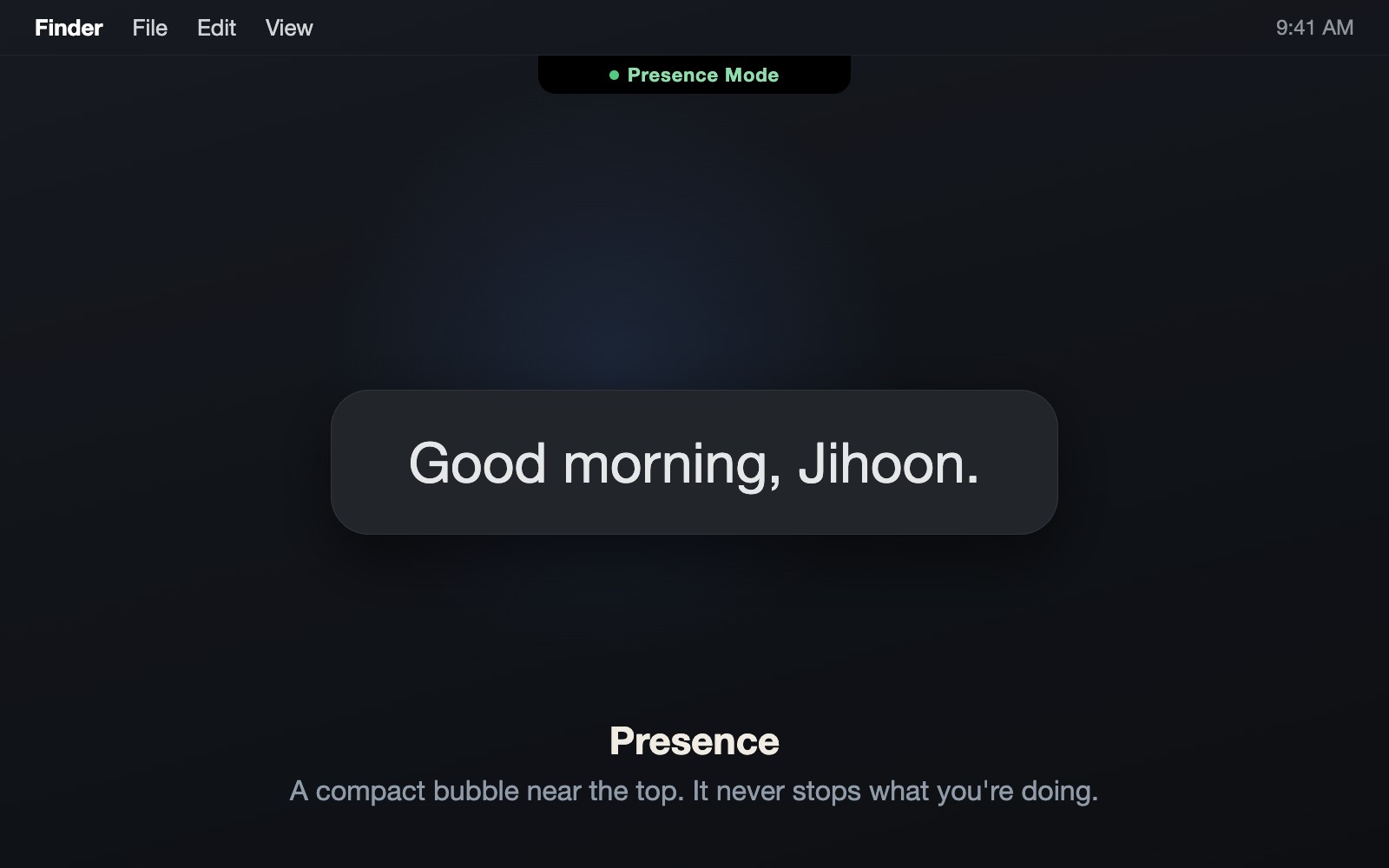
There are two looks: Presence, a compact bubble near the top of the screen, and Echo, a full-screen dark view with one line. Random picks one per wake. Quiet Hours (22:00 to 07:00 by default, crossing midnight) keeps it silent at night, and a menu bar toggle pauses it. You get 22 themes (6 free), and wake history stays on your Mac for 30 days.
Stir does not run scripts or open apps. Use SleepWatcher or Hammerspoon for that, and Stir for the part you actually see. If you'd also like to change what greets you before you log in, read how to customize your Mac lock screen, or see how to set up Stir.
Stir needs macOS 15.0 or later. It's free to download, and Pro is an optional one-time purchase for more themes.