The Menu Bar Clock Has More Settings Than It Lets On
Your Mac shows you the time all day, and most people never touch how it looks. You can customize the Mac menu bar clock to show seconds, the date, the day of the week, or a 24-hour format, and every one of those lives in two settings panes that are easy to miss. The catch is that Apple moved them recently, so older tutorials send you to the wrong place.
Short version: most of it is in Clock Options, 24-hour time is somewhere else entirely, and a second time zone needs an app. The paths below are for macOS 27 Golden Gate, and macOS 26 Tahoe uses the same layout.
Where Clock Options Live Now
On macOS 27 and macOS 26, the clock settings moved out of Control Center and into their own pane:
System Settings > Menu Bar > Menu Bar Controls > Clock Options
Open System Settings, click Menu Bar in the sidebar (you may need to scroll down), find the Clock row under Menu Bar Controls, and click Clock Options. A sheet opens with a Date section and a Time section.
On macOS Sequoia 15, the same button sits in a different pane: System Settings > Control Center > Menu Bar Only > Clock Options. The options inside are the same.
One tip: if you're not sure which version you're on, Apple menu > About This Mac tells you in one click.
Every Clock Option, Explained
Here is everything inside Clock Options, spelled the way Apple labels it, plus the one setting that lives elsewhere.
| Setting | Where | What it does |
|---|---|---|
| Show date | Clock Options > Date | When Space Allows, Always, or Never |
| Show the day of the week | Clock Options > Date | Adds the day of the week before the date |
| Style | Clock Options > Time | Digital or analog |
| Show AM/PM | Clock Options > Time | Adds AM/PM to a 12-hour digital clock |
| Flash the time separators | Clock Options > Time | Blinks the colon once per second |
| Display the time with seconds | Clock Options > Time | Shows 10:42:17 instead of 10:42 |
| Announce the time | Clock Options > Time | Speaks the time on the hour, half hour, or quarter hour |
| 24-hour time | General > Date & Time | Switches to 15:00 instead of 3:00 PM |
A few of these deserve more than a table row.
Show date. When Space Allows means the date quietly disappears when your menu bar gets crowded, and on a smaller screen with a lot of menu bar icons that can happen more often than you think. Set it to Always. The only reason to pick Never is that you glance at the clock just for the time and want the room for other icons.
Display the time with seconds. Leave this off unless you actually time things to the second (catching a drop at exactly 10:00:00, running a live stream, checking a build time). Otherwise it's a number that never stops moving in the corner of your eye, and it makes the clock wider.
Flash the time separators is the old-school blinking colon. Cute, and a quick way to see your Mac hasn't frozen.
Style. Choosing analog turns the clock into a tiny clock face. Apple notes that when you pick analog, the other time options become unavailable, so seconds, AM/PM, and flashing separators all go away.
Hold that thought. The analog style comes back later as a useful trick.
Announce the time. Turn it on and two menus appear: Interval (on the hour, on the half hour, or on the quarter hour) and Voice, where Customize Voice lets you change things like speaking rate, pitch, and volume. It's underrated if you lose track of time while working. Start with on the hour, though. Quarter-hour announcements get old fast.
Switching the Menu Bar Clock to 24-Hour Time
This is the one people can't find, because it isn't in Clock Options.
Go to System Settings > General > Date & Time and turn on 24-hour time. The menu bar clock switches to 15:00 style right away. The Show AM/PM option in Clock Options only matters when you're on 12-hour time.
The same Date & Time pane is where you set your time zone, either with Set time zone automatically using your current location or by picking a Closest city by hand.
Where the Built-in Clock Stops
Clock Options covers the basics, and then it simply ends. Four limits come up again and again.
You can't remove the clock. Apple's Menu Bar settings page says it directly: "The clock is always shown in the menu bar." Other items under Menu Bar Controls can be switched off, just not this one. The closest you can get is setting Style to analog and Show date to Never, which shrinks it to a much smaller icon.
No second time zone. Clock Options has no time zone setting at all, and the Date & Time pane only sets your Mac's own zone. Apple's answer for other cities is the Clock app's World Clock view, or a Clock widget on your desktop or in Notification Center. Fine for a quick check, but neither puts a second time in the menu bar.
Formatting is the third wall. You choose whether the date appears, not how it is written. The order of day, month, and year comes from System Settings > General > Language & Region, where the Region and Date format settings control how dates are written across macOS. Changing those may change how your menu bar date reads, but it's a system-wide switch, not a clock setting.
And the look? No font, no color, no size. The clock matches the menu bar and that's it.
The rest of the Menu Bar pane (background, auto-hide, which icons stay) is covered in the guide to customizing your Mac without apps.
Third-Party Apps for What macOS Can't Do
Prices and requirements below are as of November 2026.
Clocker: multiple time zones in the menu bar
Clocker handles the most common request: a second (or fifth) time zone right in the menu bar. Search for a city, favorite it, and that clock shows up next to the system one. On top of that you get notes and custom labels for each zone, a time slider for checking "what time is 3 PM my time over there," and reminders tied to other time zones.
Free on the Mac App Store, with an optional Clocker Pro lifetime purchase ($19.99). Needs macOS 14 or later.
Dato: calendar, world clocks, and custom formats in one
Dato from Sindre Sorhus does more. It shows the date, time, and world clocks in the menu bar with a custom format for the date and time, and clicking it opens a calendar with your upcoming events from the calendars already set up on your Mac. There's a time travel slider for world clocks, fullscreen alerts when a meeting starts, and a shortcut to join the next video call.
It's $18, one time, on the Mac App Store (also on Setapp), and it requires macOS 26 or later, which leaves out anyone still on Sequoia.
Itsycal: a tiny calendar with your own date pattern
Itsycal is a small, free menu bar calendar. The part that matters here is that it accepts a datetime pattern, so you can make the menu bar read exactly how you want. EEEE h:mm a gives you "Friday 9:54 PM", and h:mm gives you just "9:54". It runs on macOS 11 and later, with a separate build for macOS 27.
So which one? Use Clocker. Most people who want more from the menu bar clock want another city's time, and Clocker does that one job well without costing anything. Dato earns its $18 only if you live in your calendar and want world clocks, events, and meeting alerts in one place. Itsycal is the odd one out: skip it unless writing your own date format is the whole point.
Common Questions
Why is my menu bar clock dimmed?
A Focus is on and the Focus status isn't in your menu bar. Go to System Settings > Menu Bar, select Focus, and choose Always Show or Show When Active, and the clock goes back to normal.
I turned on seconds but don't see them.
Check Style. If it's set to analog, the seconds option is disabled.
Where's Clock Options in Control Center settings?
On macOS 26 and later, it isn't there anymore. Look in the Menu Bar pane instead.
Clocklet: When You Care How the Clock Looks
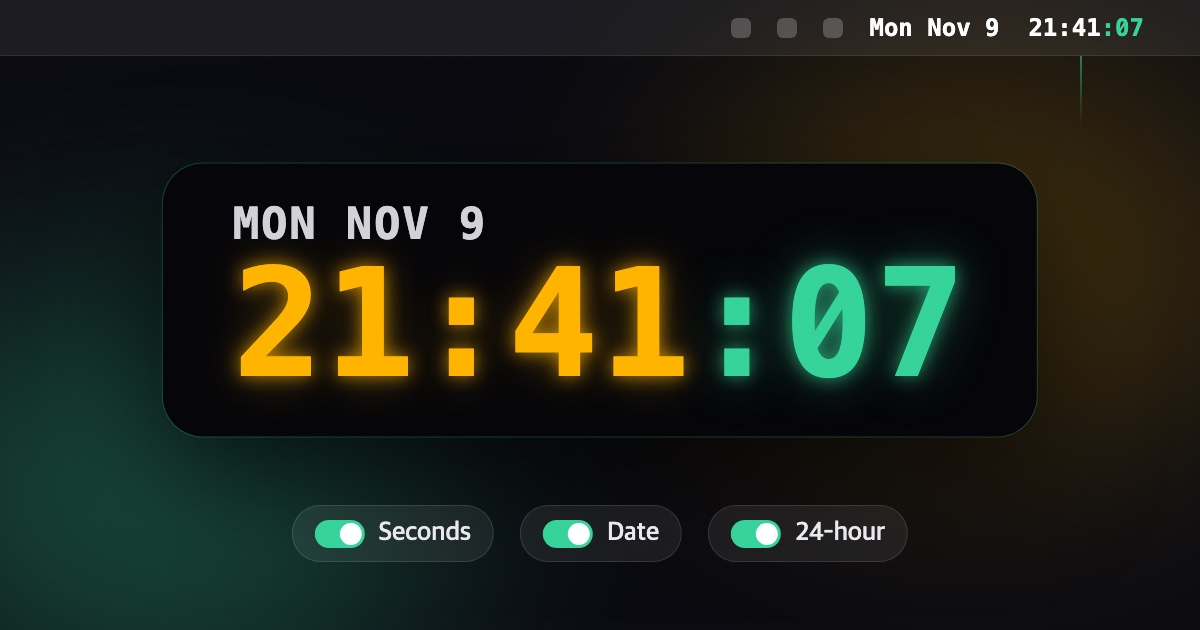
Everything above is about what the clock tells you. Clocklet, our own app, is about how it looks: a menu bar clock with 9 faces (Digital, Dot Matrix, Minimal, Gradient, Neon, LED, Sunset, Typo, and Flip) and 12 color themes. All 9 faces are free, along with 4 of the themes.
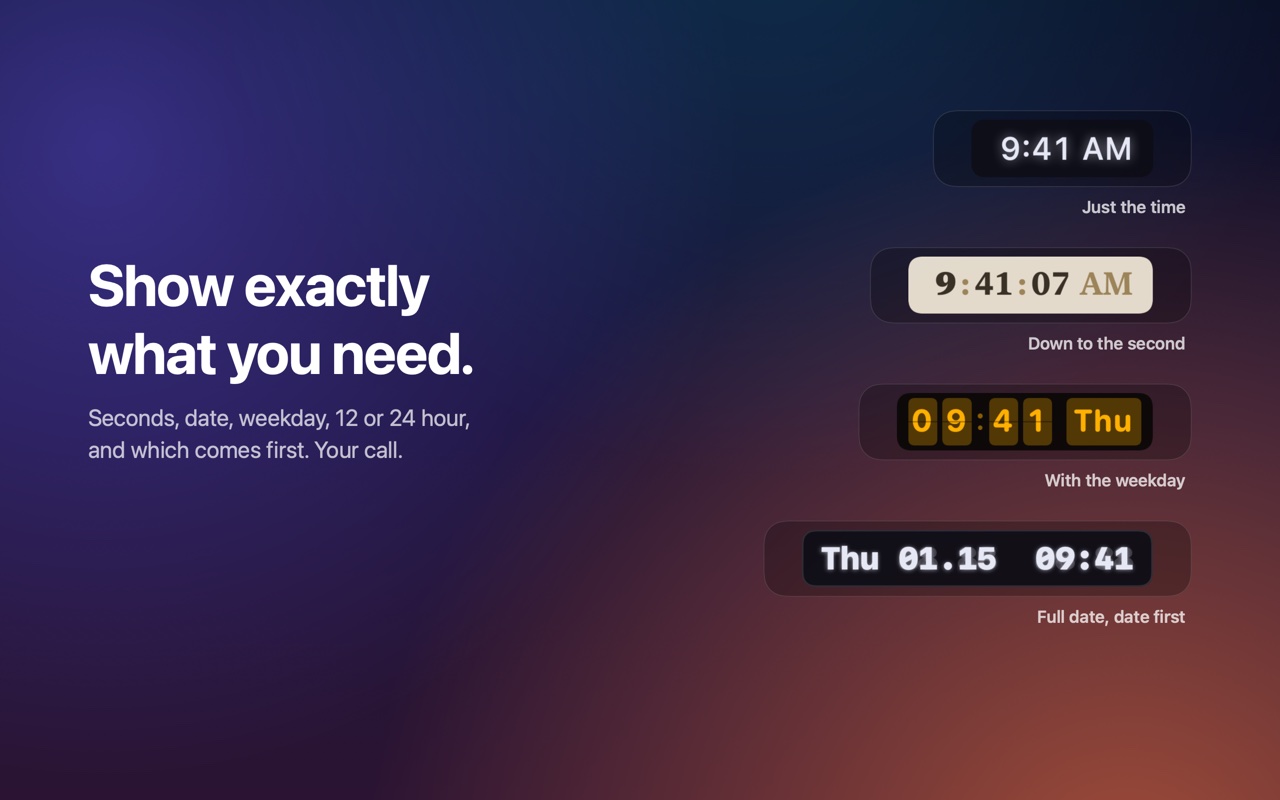
You still get the practical options: 6 date formats, the day of the week before or after the date, time first or date first, seconds, and 12- or 24-hour time. Pro is a one-time $6.99 that adds 8 more themes, a Custom theme where you pick the background, text, accent, and glow colors, and a single size setting for the menu bar clock.
macOS always keeps its own clock. If you don't want two times side by side, set the system clock's Style to analog in Clock Options (the path from the top of this post) so it shrinks to a small icon, and let Clocklet show the time.
Skip Clocklet if you need a world clock, though. It has no time zones, so get Clocker for that. Clocklet requires macOS 14 or later, and the launch post explains why it exists. If you'd rather change more than the clock, here are 7 apps that change how your screen looks.