
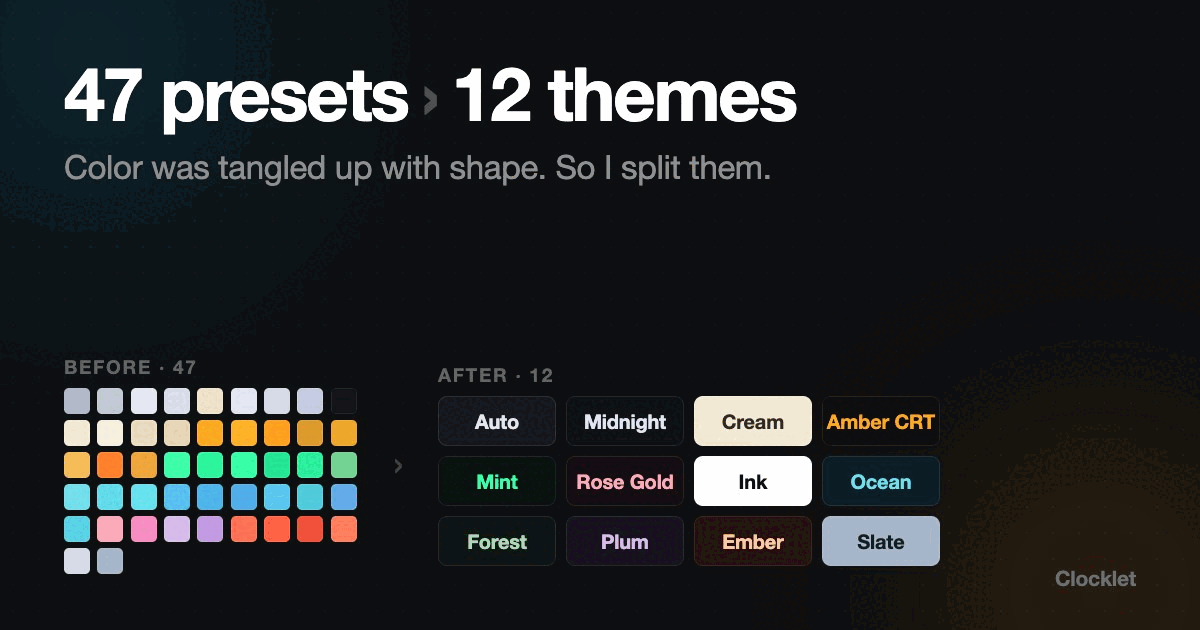
I Built 47 Color Presets for a Mac Clock App. Then I Deleted Them All.
Neon Cyan and Digital Cyan were the same color, defined twice, in two unrelated places.…
9 faces. 12 themes. Every combination legible.
Coming soon · First 30 on the waitlist get Pro freeClocklet is a macOS menu bar clock with 9 faces (Digital, Dot, Minimal, Gradient, Neon, LED, Sunset, Typo, Flip) and 12 colour themes that apply to every face, for 108 combinations in total. Requires macOS 14.0 or later.
Neon · Amber CRT
Face
Theme
Coming soon
macOS 14.0 or later · Apple Silicon and Intel
Faces
A face owns shape and typography, nothing else. Every one of them is free.
Monospace digital time
LED dot-matrix digits
Minimal styled clock
Time-of-day gradient
Neon glow clock
LED segment display
Ambient sunset palette
Typographic clock
Split-flap flip clock
Digital and Dot draw straight onto the menu bar with no pill behind them, so they take a theme's text colour and leave the background alone.
Themes
A theme owns colour: background, digits, accent, and glow. Pick one and it applies to whichever face you're using.
Auto follows your system appearance. The other 11 keep their colours in both light and dark, so the name always describes what you get. Every theme clears WCAG AA contrast against its own background, enforced by tests rather than by eye.
All free, and every toggle hits the menu bar instantly. Try the first two.
Redraws once a second and costs you nothing while it does. No fans, no battery hit.
No Dock icon and no app switcher clutter. Click the icon for a popover and pick what you want.
No telemetry, no analytics, no account. It shows the time, so there is nothing to send.
Pricing
One purchase, no subscription.
One adaptive theme, one dark, one light, and one with character. A usable clock, not a teaser.
8 more themes
Mint, Rose Gold, Ink, Ocean, Forest, Plum, Ember, and Slate, on top of the four you already have.
Custom themes
Set your own background, text, accent, and glow. Edited in the settings window, applied to any face.
Clock size
Scale the menu bar clock up or down to sit right next to your other icons.
Bought in the app whenever you want it. Everything else stays free.
FAQ
Clocklet runs alongside it. macOS does not let an app remove the system clock, so most people hide the built-in one in System Settings > Control Center > Clock, then keep Clocklet in its place.
Yes. All 9 faces, the seconds, 24-hour and date toggles, and 4 themes (Auto, Midnight, Cream, and Amber CRT) are free with no account. Pro is an optional one-time purchase of $6.99 that unlocks the other 8 themes, custom themes, and menu bar clock size. There is no subscription.
A face owns shape and typography; a theme owns colour. They are independent, so any theme can be applied to any face. That is why there are only nine faces and twelve themes to choose between, rather than a long list of fixed pairings.
9 faces and 12 themes, which combine into 108 distinct looks. The faces are Digital, Dot, Minimal, Gradient, Neon, LED, Sunset, Typo, and Flip.
Yes, with Pro. A custom theme lets you set the background, text, accent, and glow colours yourself, and it applies to any face like the built-in themes do. Custom colours are edited in the settings window.
Yes. Seconds, 24-hour time, and the date are three independent toggles, all included free, and each one updates the menu bar immediately.
No. Clocklet redraws the clock once a second and does no other background work. It has no Dock icon and is built with Apple's own frameworks, so it stays light on memory and battery.
No. There is no telemetry, no analytics, and no account. Clocklet displays the time and has no reason to contact a server.
macOS 14.0 or later, on both Apple Silicon and Intel Macs.
Tips, guides, and updates about Clocklet.
Clocklet
One clock you picked yourself.
macOS 14.0 or later