You installed Fliqlo years ago, and the big digits still flip whenever your Mac goes idle. Then you sit back down, touch the trackpad, and the clock is gone. That's usually the moment people start looking for a Fliqlo alternative, and the search results don't help much: AlternativeTo, download portals, a 2012 OSXDaily post, and a pile of keyword-stuffed pages on hijacked subdomains.
None of them tell you that a flip clock on Mac can live in three different places. A screen saver only shows up when the Mac is idle or locked. A desktop window or widget is always there, sometimes on top of your work. The third option, the menu bar, keeps the clock visible without covering anything, but it's small.
Pick the place first. The app comes second.
The verdict, up front: Fliqlo is still the best free flip clock screen saver for the Mac, and nothing below replaces it for that job. If you want the clock while you work, put it in the menu bar.
One disclosure before the table. I make Clocklet, one of the two menu bar apps here. I've kept its section to what the app actually does, including a plain list of what it doesn't.
Fliqlo Alternatives Side by Side (as of November 2026)
| App | Where it lives | Price | Requires | Last update |
|---|---|---|---|---|
| Fliqlo | Screen saver | Free (direct download) | macOS 14+ | 1.9.5, Mar 12, 2026 |
| Flip Clock: Digital Desk Widget | App window + widgets | Free, in-app purchases | macOS 12+ | 7.2, Oct 21, 2026 |
| MD Clock - Flip Clock | App window + widgets | Free, subscription/in-app purchases | macOS 12+ | 2.75.1, Nov 6, 2026 |
| McClockface - Flip Clock | App window + widgets | Free; Plus by subscription or $25 lifetime | macOS 14+ | 5.5.1, Jul 2, 2025 |
| Desktop flip clock - Countdown | Floating desktop window | Free, in-app purchases | macOS 10.15+ | 1.3.6, Jul 1, 2026 |
| Flip Clock in MenuBar | Menu bar | Free | macOS 26.1+ | 1.0, Dec 9, 2025 |
| Clocklet | Menu bar | Free; Pro $6.99 one-time | macOS 14+ | 1.0.0, Nov 5, 2026 |
Why these columns? "Where it lives" comes first because it decides when you see the clock and what it covers. "Free" on the App Store often means a subscription a few taps in, hence the price column, and the macOS requirement rules some apps out before you even read further. I added the last update date because screen savers and floating windows are exactly what a macOS release breaks. Star ratings are left out on purpose: four of these are universal apps whose ratings mix iPhone, iPad and Mac.
The Screen Saver: Why Fliqlo Is Still the Default
Fliqlo for Mac is free, and you download it as a .dmg straight from fliqlo.com. The site links no Mac App Store version. The current build, 1.9.5, requires macOS 14 or later, and the site points anyone on macOS 13 or earlier to the older 1.8.6.
The options are short: 12 or 24 hour, landscape or portrait, dim the display, show or hide the flaps, reduce the size, and primary display or all displays. For a screen saver, that's the right list.
Its weak spot is macOS updates. The Sonoma compatibility fix arrived in 1.8.6 (September 25, 2023), and 1.9 did more Sonoma work while dropping the multi-display option (it came back in 1.9.3). Sequoia got its update in 1.9.4 (October 2024). For Tahoe, it was 1.9.5 on March 12, 2026. A fix for a background screen saver process that wouldn't quit shows up twice, in 1.9.4 and again in 1.9.5. Every major macOS release since Sonoma has needed a Fliqlo update.
Users felt it. In an r/MacOS thread from September 28, 2023, people reported that after Sonoma, Fliqlo either didn't show at all or the time froze at the moment the screen saver started. An Apple Community thread describes the same frozen clock, and some posters there were still stuck in April 2024. One user wrote that they hadn't upgraded macOS "for fear Fliqlo wouldn't work."
There was a memory problem too. Another Apple Community thread from November 6, 2023 describes the legacyScreenSaver process using around 1.3 GB of RAM after Sonoma. One poster tied it to Fliqlo and said 1.9.4 fixed it.
One tip if Fliqlo freezes or disappears after a macOS update: delete the old .saver file, install the latest build from fliqlo.com, and restart. That's the fix most people in those threads confirmed.
One user in 2025 also reported the macOS lock screen clock still showing on top of Fliqlo. That's a single report, so treat it as a maybe.
Today, Homebrew's cask lists 1.9.5 as supported on Sequoia and Tahoe, and there hasn't been a Mac release since March 2026. (The Fliqlo on the App Store is a separate, paid iPhone and iPad app, not the Mac screen saver.)
Then there's the limit no update will fix. A screen saver only appears when the Mac is idle or locked. While you work, it's gone.
Desktop Window and Widget Apps
macOS has no built-in flip clock to fall back on. Sonoma and later have a desktop Clock widget, but it isn't a flip style.
Flip Clock: Digital Desk Widget is the biggest name here, with 4.6 stars from about 71,500 ratings across all platforms. It's a universal app (iPhone, iPad and Mac, macOS 12 or later) with a full-screen flip clock, themes, 12/24 hour, widgets, and timers including Pomodoro. Free, with in-app purchases. The listing is written mainly for iPhone.
According to its listing, MD Clock was a 2022 Apple Design Award finalist. It has 24 themes, widgets, and timers and alarms, and it was updated on November 6, 2026. Free with a subscription.
David Steppenbeck's McClockface is free with no ads, and the free version includes the in-app flip clock without limits. Plus costs a subscription or $25 lifetime. 9to5Mac reported menu bar support on the Mac in May 2023, but the current App Store description doesn't mention it, so check before you count on it. The last update was July 2, 2025, and the reviews (iPhone and Mac mixed) include "No widgets can be used without paying for a subscription" from October 2024.
Desktop flip clock - Countdown is a Mac-only floating flip clock with a countdown and Pomodoro timer. Its US App Store reviews from 2021 to 2023 are the clearest record I found of how a floating clock goes wrong. People couldn't close it. Others complained it stayed on top of every window ("it always superimposed on all internet pages I have open"), or vanished after a reboot, and one paid upgrade wasn't recognized at all. In fairness, those reviews are old, and a 2024 review says it "works perfectly in sonoma."
FlipCloc, a paid app plus a separate screen saver, launched on r/macapps on August 11, 2026. At launch, per the developer's Reddit thread, each cost $9.99; after commenters called that "hilarious," the developer cut it to $5 each or $10 for both. It's not in the table because I couldn't check a current listing.
But in Practice, the Place Matters More Than the App
On paper, the window apps win. They have the biggest digits, the most themes, timers, alarms, widgets. Fliqlo does one job and costs nothing.
But in practice, each place comes with one failure you can't configure away.
The screen saver is idle-only. You see the clock exactly when you aren't looking at your Mac. And every major macOS release is a gamble until the developer ships a fix.
A desktop window has the opposite problem: it's there while you work, which means it's either on top of your work or under it. Keep it always on top and it sits over your browser and your documents. Let it behave like a normal window and it's buried a minute later. Most of those Desktop flip clock complaints aren't really about that app. They're about the place.
The menu bar avoids both. It's visible all day and covers nothing. The cost is size: you trade a clock across half the screen for one that fits in a strip at the top.
For a screen you sit at all day, small beats hidden, and small beats in the way.
Menu Bar Flip Clocks: Flip Clock in MenuBar and Clocklet
The built-in menu bar clock has a few settings of its own (I covered them in how to customize the Mac menu bar clock), but none of them give you a flip look. Two apps do.
Flip Clock in MenuBar (it calls itself FCMenu) is free and Mac-only. It flips every digit change with a SwiftUI 3D animation, lets you turn seconds on or off, and switches colors automatically for light and dark mode. That animation is the main reason to pick it. The downsides: it requires macOS 26.1 or later, it has had one release so far (1.0, December 9, 2025), and it has one look. If you're on 26.1 and you want motion, start here.
Clocklet is my app. It launched on the Mac App Store on November 5, 2026, and it requires macOS 14 or later. (The longer story of why it exists is in the Clocklet launch post.) It's a menu bar clock with 9 faces, all free: Flip, Neon, LED, Dot (dot matrix), Typo, Digital, Minimal, Gradient and Sunset. Flip is the reason it's in this post: digits on split-flap cards, like a train station board. It's the look, not the motion. Don't expect a flap falling over every minute, so if that animation is what you're after, Flip Clock in MenuBar is the better pick.
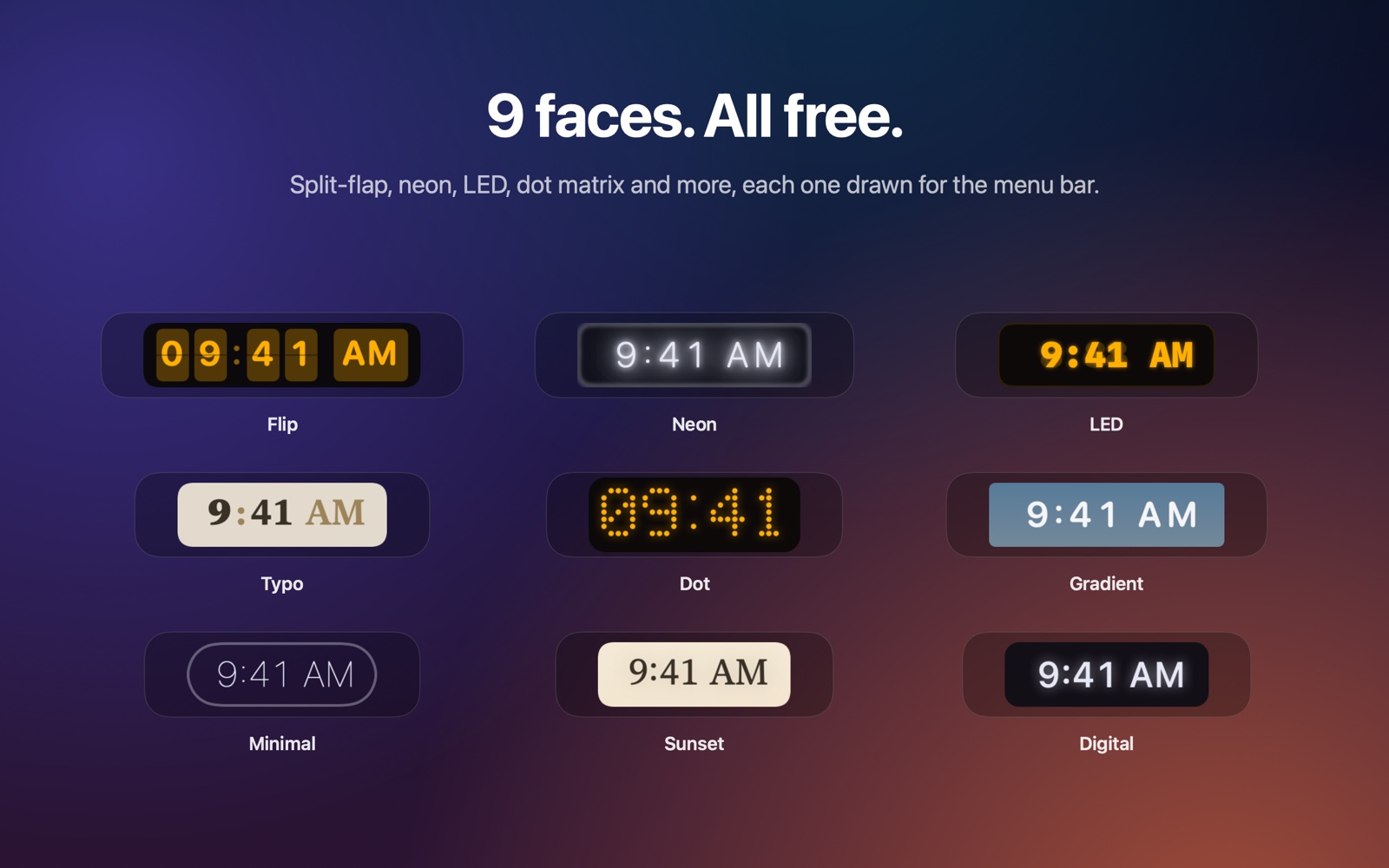
There are 12 color themes, and every one works on every face. Four are free: Auto, Midnight, Cream and Amber CRT. Every theme is tested for WCAG AA text contrast, which matters more than usual when the whole clock is a few characters tall. You can turn seconds on or off, pick 12 or 24 hour, show the date in six formats, put the weekday before or after the date, and put the time or the date first. It can launch at login.
Clocklet Pro is a one-time $6.99, with no subscription, and it works with Family Sharing. It adds the other 8 themes (Mint, Rose Gold, Ink, Ocean, Forest, Plum, Ember, Slate), a Custom theme where you set the background, text, accent and glow colors, and a Clock size option that scales the menu bar clock.
There's no account, no tracking, and no network access.
Now what it doesn't do. Clocklet is not a screen saver, and you won't find a floating desktop window or an always-on-top mode either. Time zones, alarms and timers are missing too. If you want a Pomodoro timer next to your clock, one of the window apps above is a better fit.
If you're working on the look of your whole Mac rather than just the clock, I rounded up more Mac visual customization apps that don't need any extra hardware.
Which Flip Clock to Use, by Scenario
You want a big clock while the Mac sits idle
Your Mac sits on a desk, and when you walk away you want a big flip clock to fill the screen. That's what a screen saver is for, and it's the one place where idle-only isn't a drawback.
Use Fliqlo. It's free, and it covers all your displays if you ask it to. Get 1.9.5 for macOS 14 and later, or 1.8.6 for older versions. After every major macOS update, check it once. If the time freezes, delete the old .saver, reinstall from fliqlo.com, and restart.
You want the time visible on a second display while working
You have a second monitor that mostly holds Slack or a reference document, and you'd like a large clock on it while you work on the main screen. This is the one case where a window app makes sense, because covering part of a secondary screen costs you very little. Use Flip Clock: Digital Desk Widget in full screen on that display. It's free to start, it was updated in October 2026, and it has timers if you want them. Check how the Mac version looks before you pay for anything. And keep it off your main screen.
You want a flip look all day without giving up screen space
Use a menu bar clock. This is the laptop case: one screen, no room to spare, and you just want to glance up and see flip digits without anything sitting on top of your windows.
On macOS 26.1 or later, if a flip animation is what you're after, use Flip Clock in MenuBar. Anywhere from macOS 14 up to 26.0, or if you want more than one look, use Clocklet: the Flip face and every other face are free, four themes are free, and Pro is a single $6.99 if you want custom colors or a bigger clock.
My Picks
Install Fliqlo for the screen saver. For an idle Mac, nothing in this roundup beats it. Expect to reinstall it after a major macOS update.
For all-day, put a flip clock in the menu bar. Get Flip Clock in MenuBar if you're on macOS 26.1 and want animation. Get Clocklet if you're on macOS 14 or later and want the split-flap look (without the flap animation) plus eight other faces, with no subscription.
Use a desktop window app only on a second display, where it can't get in your way.
The wrong choice here isn't expensive. It just means a clock you never see, or one you keep dragging out of the way.