
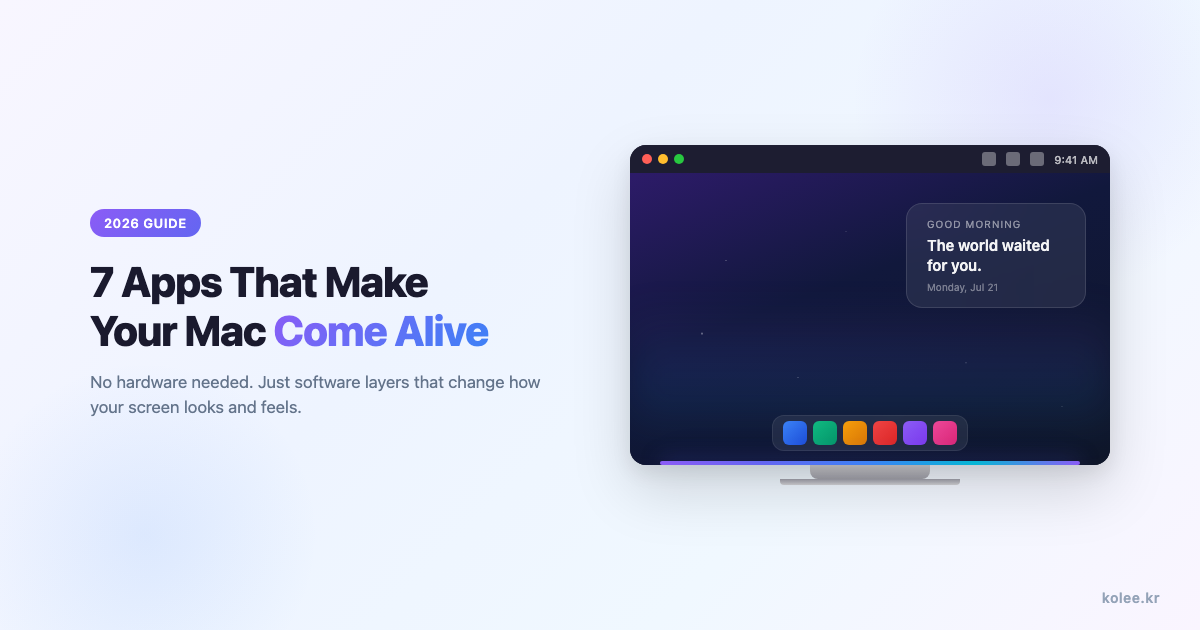
Your Mac ships looking identical to every other Mac on the planet. Same wallpaper. Same dock. Same login screen.
Most "Mac customization" guides start with hardware: LED light strips, monitor arms, desk mats. But the biggest visual upgrades aren't things you plug in. They're software layers that change how your Mac looks at every stage - waking up, working, and walking away.
Here are 7 apps that each handle a different visual layer. No hardware required, and the total battery impact across all of them is negligible.
1. Make Your Mac Alive: Stir
Your Mac is a machine. It doesn't know you're there. Open the lid, unlock the screen, and it just... loads your desktop. No acknowledgment. No presence. It treats you the same whether you've been gone five minutes or five hours.
Stir changes that. The moment your Mac wakes, it responds to you. A cinematic overlay appears - your name, the time, a message - and suddenly this isn't just a machine booting up. It feels alive. It knows you came back.
This isn't about productivity or information. It's about presence. The difference between a tool that ignores you and one that acknowledges you exist. Your Mac becomes something with a personality.
Two overlay modes let you choose the intensity:
- Echo - Full-screen takeover. Dark, typographic, cinematic. Your entire display becomes the greeting.
- Presence - A compact bubble floating over your desktop. Subtle but alive.
19 visual themes range from minimal paper textures to animated particle effects. AI-powered greetings mean the message is different every single time. Your Mac never repeats itself.
There's nothing else in this category. Screensavers activate when you leave. Wallpapers are static. Nothing else makes your Mac feel like it's aware you're sitting down.
2. A Living Desktop Element: GlowLight
Most Mac widgets are static. Clocks, calendars, weather tiles. They look nice in a screenshot but don't actually move.
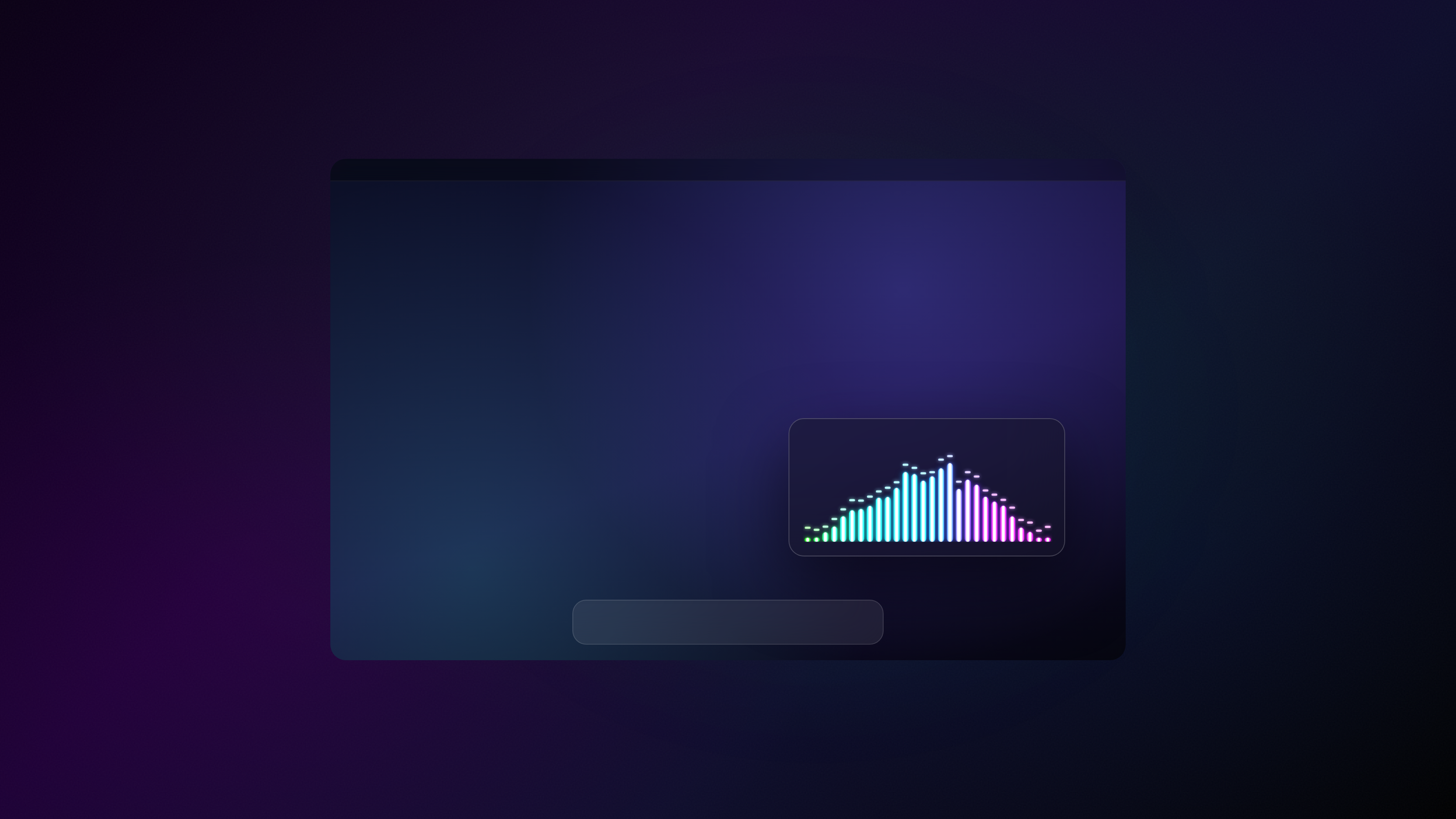
GlowLight is different. It places a floating waveform widget on your desktop that reacts to system audio in real time. Music, video calls, even notification sounds - the waveform responds. When nothing's playing, it settles into a gentle idle animation.
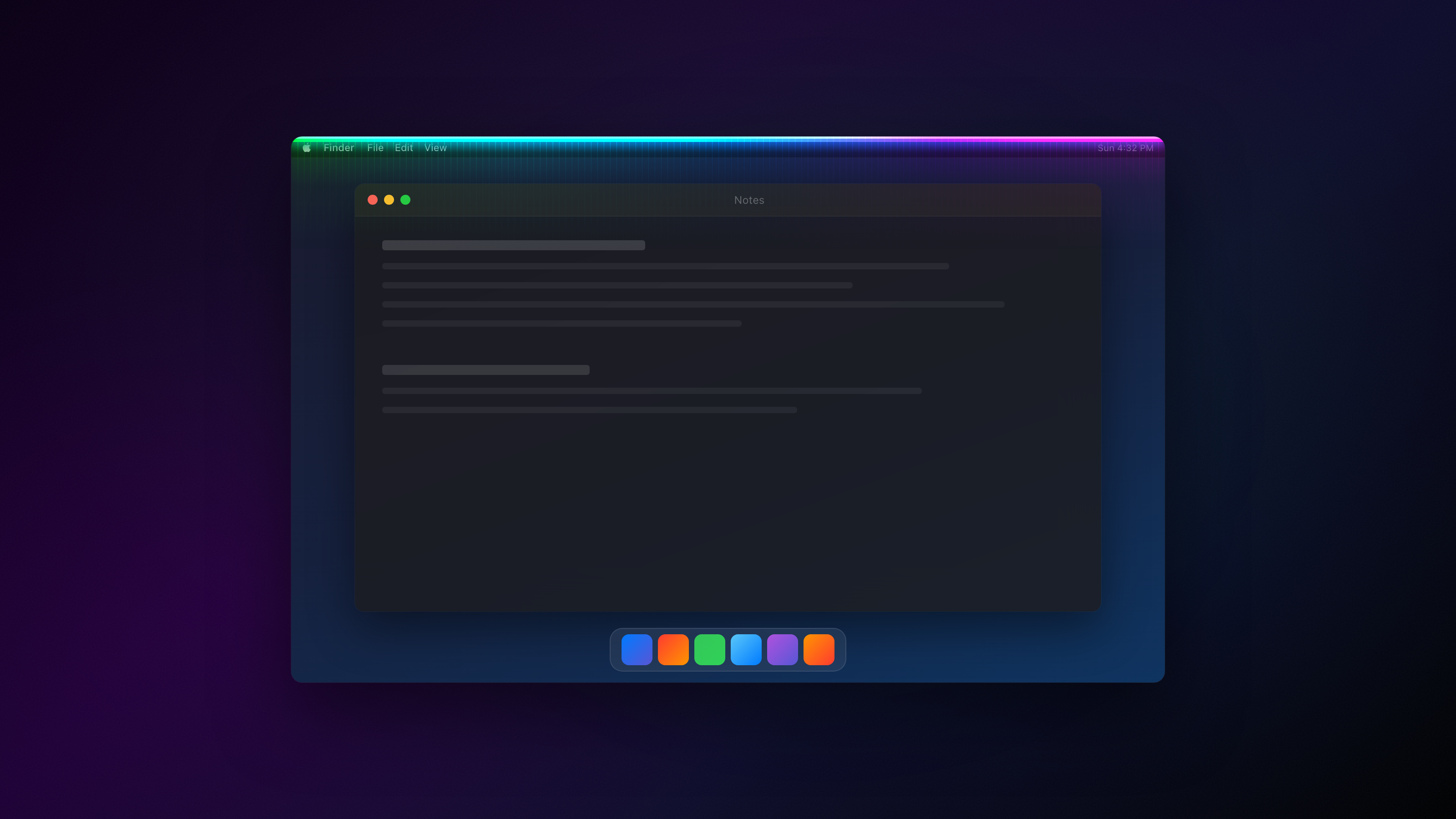
Version 2.0 moved from a simple screen-edge light bar to a floating widget you can position anywhere. The practical upside: 0.3% battery impact. Compare that to Wallpaper Engine running at 8-15% CPU just for a moving background.
The trick is pairing GlowLight with a minimal static wallpaper. Let it be the only thing that moves on your desktop. One living element is striking. Five is chaos.
3. Animated Wallpapers: Wallper
Static wallpapers are fine. But if you've ever walked up to a Mac running a slow-motion ocean or a time-lapse cityscape, you know the difference.
Wallper is a native Mac app with a curated library of 4K video wallpapers. It auto-pauses on battery, supports per-display configurations, and it's the only app with truly native Lock Screen video wallpapers on macOS Tahoe - set at the system level so it looks and feels built-in.

Two alternatives worth knowing:
- gifPaper - Over 300 handcrafted 4K wallpapers that loop seamlessly - from cozy fireplaces to lofi scenes to cosmic space. Converted to Apple's native format for zero CPU usage. Some include ambient audio.

- Wallspace - Lightweight and Swift-native. Cinematic animated wallpapers without a subscription model.
If battery life matters to you, gifPaper's zero-CPU approach is hard to beat. If variety and lock screen integration matter more, Wallper is the pick. Wallper is a one-time $14.99 purchase with a 7-day free trial.
4. The Screensaver: Aerial
You've probably seen those cinematic drone shots of cities, deserts, and oceans on Apple TV. Aerial brings all of them to your Mac screensaver, and it's free and open-source.
What makes Aerial actually worth installing: multi-display layouts, clock and weather overlays, and the ability to add your own .mov files. You can set different scenes per monitor and overlay the current time in a font that matches your setup. It also works as a live desktop wallpaper now - not just a screensaver.

It's been maintained for years with regular updates. If you only install one thing from this list, this is the safest bet.
For a minimal alternative, Fliqlo gives you a single flip-clock screensaver. White digits on black. No video, no scenes - just a retro clock that fills your screen. Sometimes less is the right call.
5. Menu Bar Cleanup: Ice
A cluttered menu bar undoes every other customization you've made. You can have the right wallpaper, the right dock, and the right widgets - but 14 menu bar icons makes it all look unfinished.
Ice is a free, open-source menu bar manager. Drag icons into "hidden" or "always hidden" sections, toggle with a click. It became the go-to Bartender replacement after Bartender's ownership changed hands in 2024 without notice.
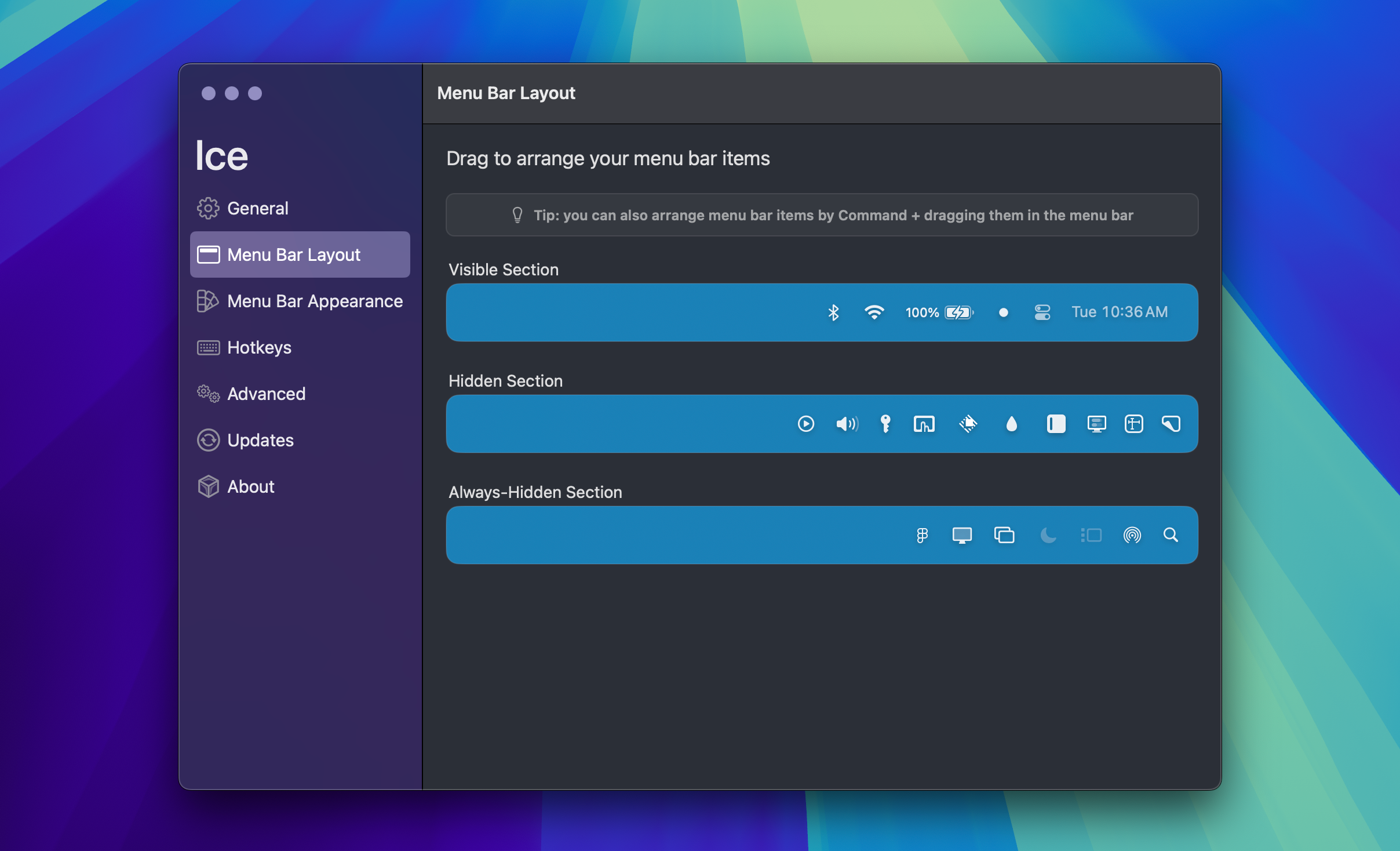
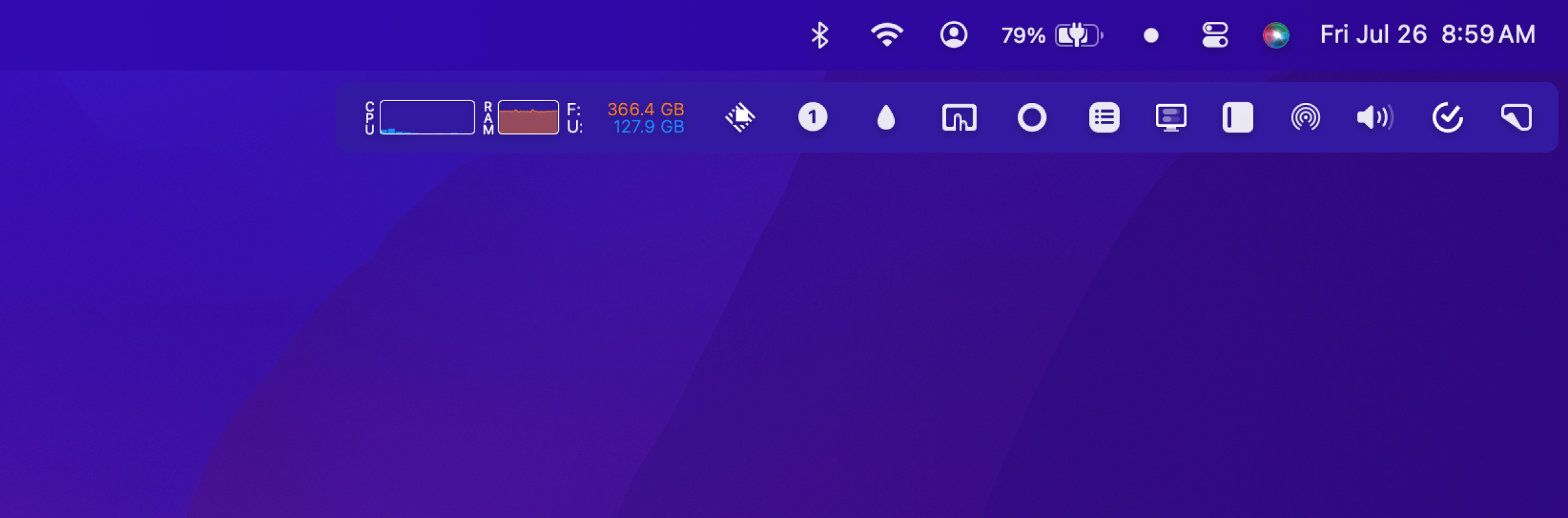
No subscription, no account, no telemetry concerns. Takes 30 seconds to set up.
If you need more control, Barbee (Mac App Store, paid) adds conditional rules - show or hide icons based on battery level, network, or Focus mode. But for most setups, Ice is enough.
6. Dock Styling: HiDock
The macOS Dock hasn't changed visually in years. HiDock lets you add a tinted or blurred background behind it, change its style per Space or display, and preview windows on hover.
It's free, which makes it an easy addition. If you work across multiple desktops, having a visually distinct dock per Space helps with orientation, not just aesthetics. HiDock auto-deploys your preferred Dock layout as you roam between screens.
7. Desktop Widgets: Color Widgets
Since macOS Sequoia, you can pin widgets directly to your desktop instead of hiding them in Notification Center.
Color Widgets has the largest library of pre-styled widget designs. Clocks, calendars, photo frames, all with color-matching to your wallpaper. Use the built-in widget editor to customize colors, fonts, and design to fit your aesthetic. WidgetWall takes a more curated approach - fewer options, but everything looks consistent out of the box.
One tip from hours of testing: don't use ten widgets. Two or three that feel intentional beats a cluttered dashboard every time. Match widget color temperature to your wallpaper. Cool wallpapers pair with white, blue, or gray widgets. Warm wallpapers pair with cream or peach tones. When the colors match, the whole desktop suddenly feels more considered.
The Stack I Actually Use
For reference, here's what runs on my Mac right now:
- Stir - my Mac greets me every time I sit down. It feels alive.
- GlowLight floating waveform in the bottom-right corner
- Aerial screensaver with ISS footage
- Ice with the menu bar down to 4 visible icons
- A static wallpaper from Unsplash (GlowLight handles the movement)
Total battery impact: negligible. Total cost: under $15.
None of this requires an LED strip behind your monitor or a desk accessory. Five apps, five visual layers, and your Mac stops looking like a default install. It starts feeling like something that's yours - something alive.
If you're running a visual setup worth sharing, I want to see it. Tag @leejihoondd on X.