You just spent a lot of money on a Mac. You open the lid, go through setup, and land on your desktop. It looks... exactly like every other Mac you've ever seen.
The same default wallpaper. The same row of apps in the Dock. The same cluster of icons in the menu bar. If you put your screen next to a stranger's MacBook at a coffee shop, you'd have trouble telling them apart.
That always bugged me. I spend 10+ hours a day staring at this screen. It should feel like mine.
Over the years, I've found a handful of tweaks that actually make a difference. Not the "install 47 utilities" kind of list. Just the things that stuck. Here's what I'd tell a friend who just got a new Mac and asked "how do I make this thing feel less... generic?"
Start With the Wallpaper (It Changes More Than You Think)
This sounds obvious, but most people just pick a different Apple wallpaper and call it a day. That's fine, but there's more you can do here.
Dynamic wallpapers shift throughout the day. macOS has built-in ones, but the built-in options are limited. If you want something more interesting, third-party apps have gotten really good at this.
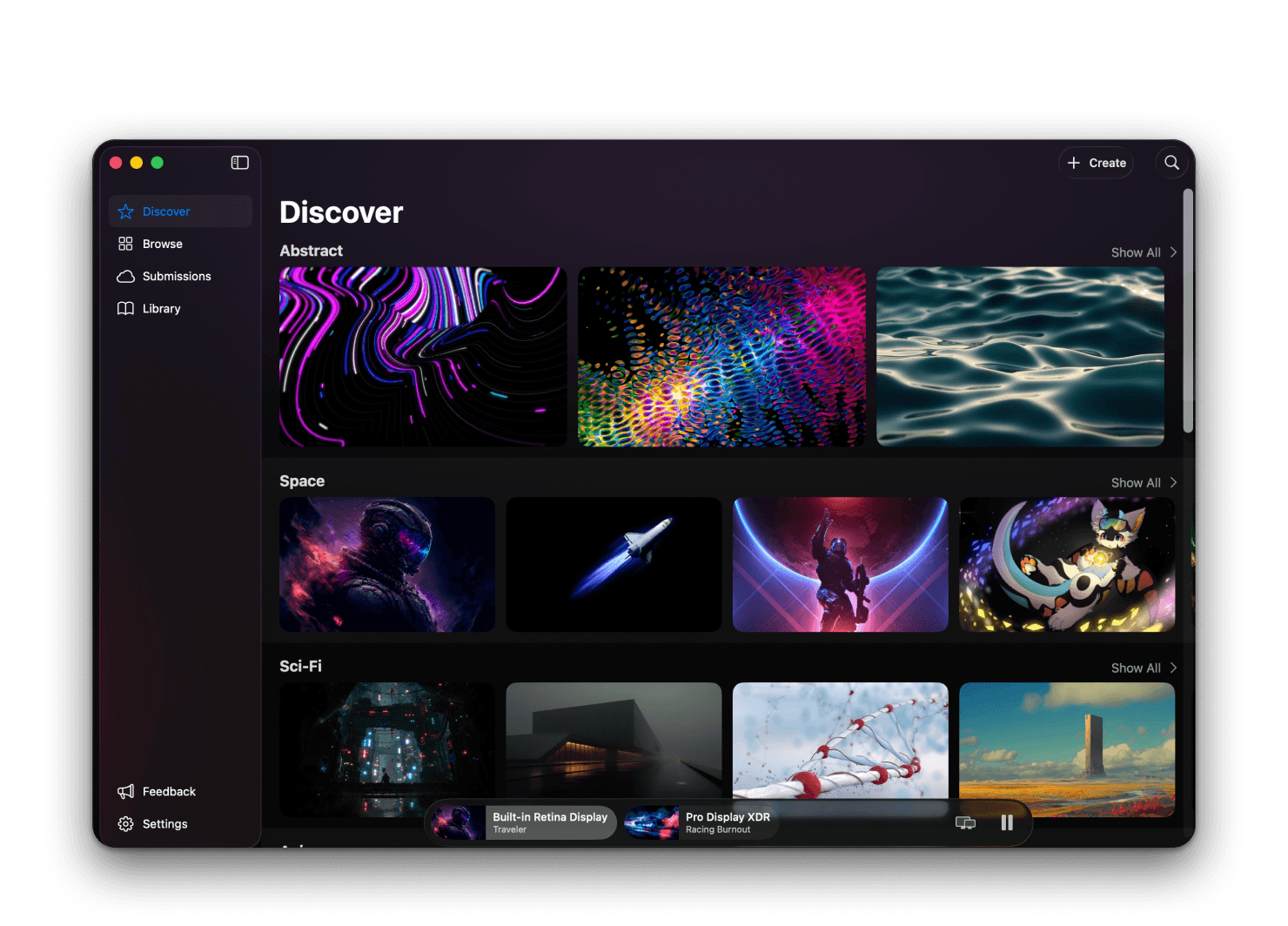
Backdrop is the best live wallpaper app right now. It plays video wallpapers with surprisingly low CPU usage, connects to a community library of 4K videos, and handles multi-monitor setups well. The video lock screen feature is a nice touch too.
One tip: whatever wallpaper you choose, pick something that works with both light and dark mode. Nothing worse than a bright wallpaper blinding you at 2am when dark mode kicks in.
Clean Up Your Menu Bar
The menu bar is where macOS customization gets weirdly satisfying. After a few months of installing apps, that top-right corner turns into a mess of tiny icons you can't even identify anymore.
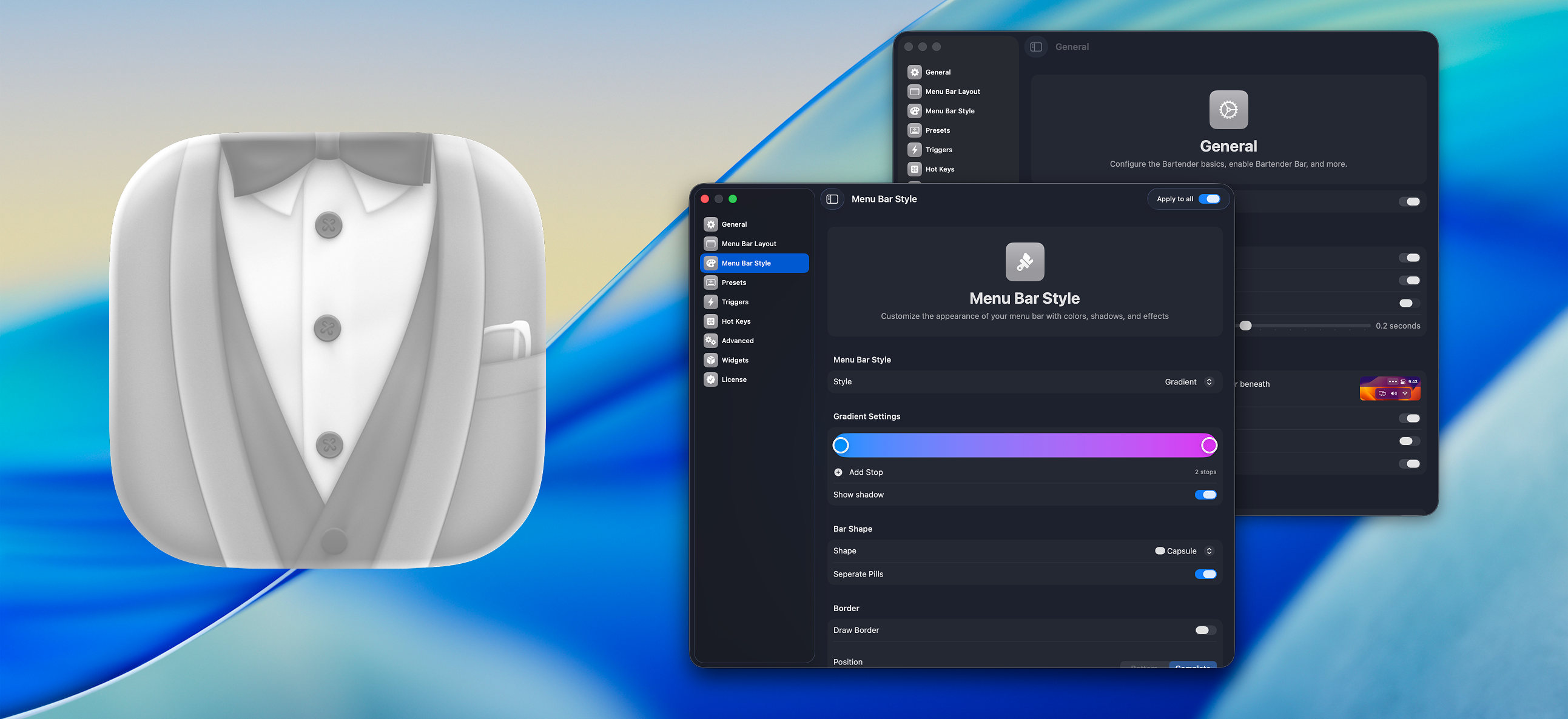
Bartender has been the gold standard here for years. It lets you hide icons you rarely need, show them only when they update, and reorganize everything into a clean secondary bar. It's not free, but it's one of those "pay once and forget" utilities. If you'd rather not pay, Hidden Bar is a solid free alternative.
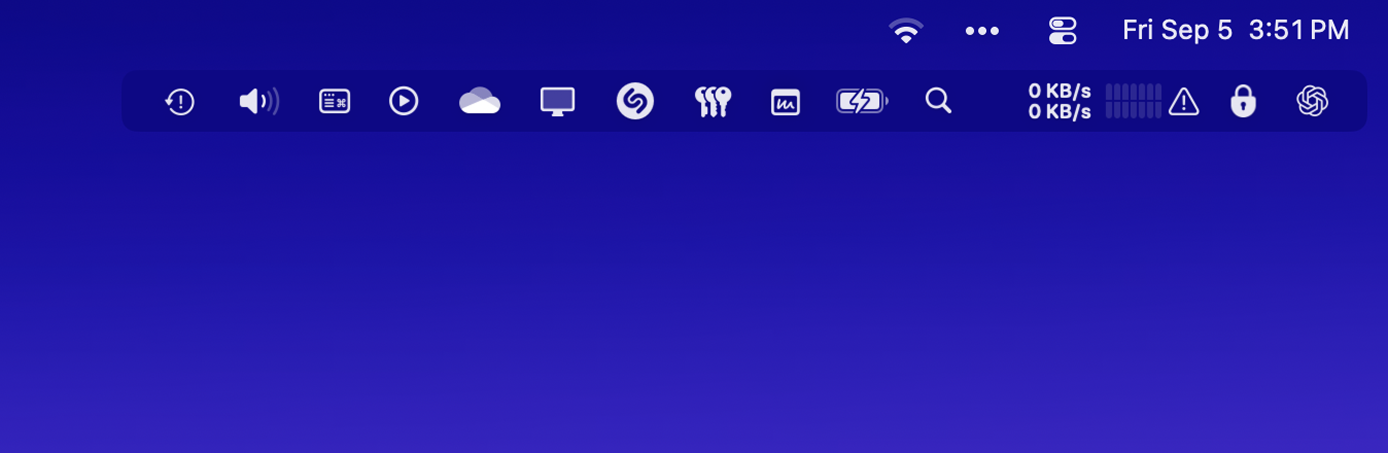
My setup: I keep exactly 5 icons visible (Wi-Fi, sound, battery, clock, and my time tracker). Everything else is hidden behind Bartender. The visual calm is worth it.
Rethink Your Dock
The Dock is one of those things Apple clearly designed for first-time computer users. If you've been using a Mac for a while, the defaults feel bloated.
Here's what I do, no third-party apps needed:
Make it smaller. System Settings > Desktop & Dock > Size slider. Pull it way down. A smaller Dock looks cleaner and gives you more screen space.
Move it to the side. I keep mine on the left edge, hidden. It's out of the way until I need it. Bottom Dock eats into vertical space, and on a laptop screen, every pixel of height matters.
Turn on auto-hide. This is the single biggest visual improvement you can make. Your desktop looks so much bigger without a permanent Dock at the bottom.
Remove everything you don't use daily. Right-click > Options > Remove from Dock. Be ruthless. You can always launch apps with Spotlight (Cmd+Space). I have maybe 8 apps in my Dock. That's it.
Change Your App Icons
This one surprised me the most. macOS lets you swap any third-party app's icon, and the visual impact is immediate.
macosicons.com has a massive community library with over 30,000 well-designed alternatives. Search for any app and you'll usually find 5-10 options. Swapping takes 30 seconds per app (Get Info > paste new icon), and after doing Slack, Spotify, VS Code, and your browser, your desktop looks completely different.
Skip system apps like Finder and Safari though. Changing those requires disabling System Integrity Protection, and it's not worth the security trade-off.
The Moment Nobody Thinks About
So you've got your wallpaper dialed in, your menu bar clean, your Dock minimal, and your icons looking sharp. Your Mac feels like yours now.
But here's something I noticed: there's this one moment every day that none of this touches.
You open your laptop. The screen wakes up. You authenticate. And then... nothing. You just land on your desktop. Whatever app you left open last time is staring back at you. Or worse, a blank desktop.
That transition from "locked machine" to "my workspace" has always felt abrupt to me. Like walking into your apartment and the lights are off and nobody says hi.
I ended up building something for this. It's called Stir.
Stir shows a cinematic greeting overlay right after your Mac wakes up. Think of it as a "welcome back" moment. It fills that gap between unlocking and actually starting to work. A quick breath before the chaos of tabs and notifications.

It's a small thing. But it's the kind of detail that makes your Mac feel less like a tool and more like something that knows you're there.
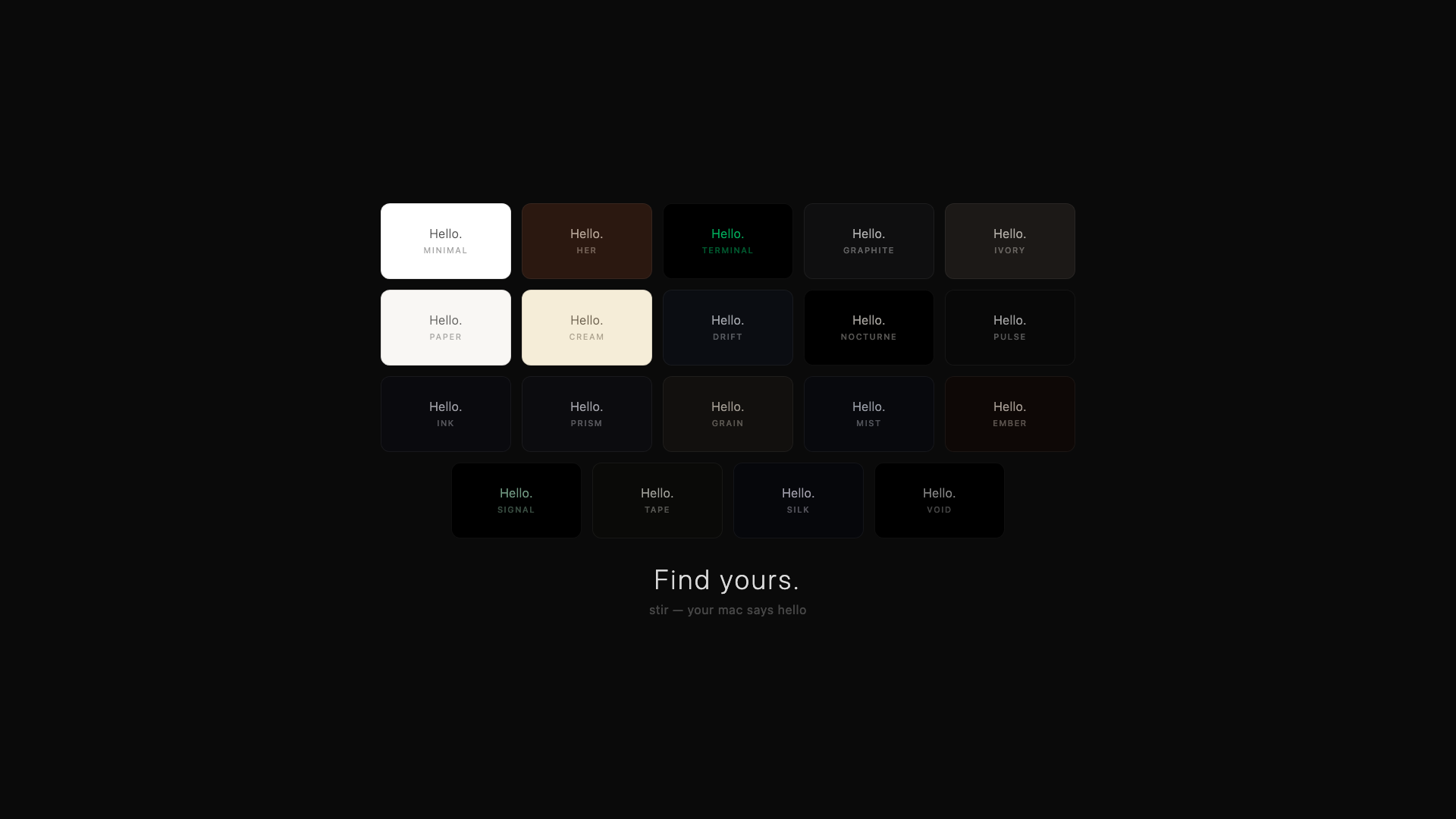
No other app does this, which is partly why I built it. It scratched an itch I couldn't find a solution for.
If the login moment doesn't bother you, skip it. But if you've ever felt that weird blankness after opening your laptop, give it a look.
The Little Stuff Adds Up
Customizing your Mac isn't about one dramatic change. It's a bunch of small decisions that compound.
A wallpaper that shifts with the time of day. A menu bar that isn't screaming for attention. A Dock that only shows what matters. Icons that match your taste instead of some designer's default from 2019.
Individually, none of these are a big deal. Together, they turn a generic machine into something that feels like it belongs to you.
The best part? Most of this takes 20 minutes. You don't need to be technical. You don't need to spend money (though a few paid apps are worth it). You just need to care enough to make the small adjustments.
Your Mac is the thing you look at more than anything else in your life. It might as well look back the way you want it to.