You're on a Mac, a YouTube video is playing, and the black space around it feels flat. You've seen screenshots where the video's colors spill softly past the frame, and you want that. Good news: getting ambient light around YouTube on a Mac can cost nothing at all, and the free option is already sitting in your browser.
The question that sorts every option below is simple. Does the light follow the picture, or doesn't it?
Only tools that actually sample the video can follow it. A red explosion turns the glow red, a forest scene turns it green. Everything else gives you a fixed glow that ignores what's on screen. The two are not interchangeable, and you should know which one you're getting before you install anything. I couldn't find a built-in macOS feature that extends video colors beyond the frame, so every option here comes from YouTube, a browser extension, or extra hardware.
Here they are, cheapest first.
1. YouTube's own Ambient mode (free, already there)
Most people searching for this don't need to install anything. YouTube has had a feature called Ambient mode since its October 2022 redesign. In Google's own words, it "uses a lighting effect to make watching videos more immersive" by casting colors from the video into the page background.
So yes, it follows the picture. That's the whole point of it.
The trick is that it's tied to Dark theme. Per Google, "Once you turn on Dark theme, ambient mode is automatically enabled." To turn on Dark theme on youtube.com:
- Click your profile picture in the top right
- Choose Appearance
- Select Dark theme
Now open any video. The page around the player should pick up a soft wash of the video's colors.
To turn it off without leaving Dark theme:
- Open a video
- Click the Settings gear on the player
- Switch the Ambient mode toggle off
You can keep Dark theme and drop the glow, or the other way around if you just want it back later.
The catch
Ambient mode lives on the web page, not in the video. According to a 2024 Popular Science write-up, it shows only in the default view, not in fullscreen or theater mode. Google's help page doesn't say either way, and that article is a couple of years old, so things may have changed. But if you click fullscreen and the glow vanishes, that's probably why.
Then there's Safari. Google doesn't list which browsers support Ambient mode, and I couldn't confirm whether it works in Safari. The honest advice: switch YouTube to Dark theme in the browser you actually use and look. It takes ten seconds and tells you more than any article can.
If it works and you mostly watch in the default view, stop here. You're done, and you paid nothing.
2. The free extension: "Ambient light for YouTube"
If you want the glow in fullscreen, or more control over how it looks, the next step is a browser extension called Ambient light for YouTube. It's open source under the MIT license, free to install, and available for Chrome, Edge, Firefox, and Opera.
It's also popular. As of October 2026 the Chrome Web Store listing shows 1,000,000 users and a 4.9 out of 5 rating from 560 ratings. The Firefox version has a smaller audience, 36,889 users, with the same 4.9.
Unlike YouTube's built-in mode, it works in fullscreen. There's a setting to choose which view modes it runs in: small, theater, and fullscreen. That alone is the reason to pick it over Ambient mode.
Two things to know before you install:
It runs only on youtube.com tabs. Nothing else.
The listing warns that weaker GPUs may stutter. If your Mac struggles, you'll notice it in playback.
And the big one for Mac users: I found no Safari version, and nothing in the Mac App Store. If you watch YouTube in Safari, this option means switching browsers for YouTube. If you're a Safari-only person, that's a real cost, even if the extension itself is free.
3. Light on the wall that follows the picture (hardware)
Everything above stays inside your screen. If you want actual light on the wall behind the monitor that changes with the video, you need lights, and something that reads the screen to drive them. There are three routes I'd consider.
Philips Hue Sync. The Hue Sync desktop app is free for Mac and Windows, runs on macOS 11 Big Sur or later, and has been native on Apple Silicon since 2022. The app is free; the setup isn't. You need a Hue Bridge (or Bridge Pro), color-capable Hue lights, and an entertainment area set up in the Hue app. Without a Bridge, only one light of certain models works.
For YouTube specifically, it works. Philips' own FAQ says YouTube and Vimeo sync, but protected streams like Netflix and Disney+ don't.
Like any app that samples your screen colors, it needs Screen Recording permission. On a Mac that's in System Settings > Privacy & Security > Screen & System Audio Recording (Apple's page). That's normal. It can't follow the picture without looking at it.
If you already own Hue lights, this is the obvious pick.
Govee camera kits. The DreamView G1 and G1 Pro take a different approach: a camera watches your monitor and the kit drives the lights from what it sees. Since the camera does the watching, nothing runs on the Mac. Govee doesn't explicitly say "Mac," but there's no software for the Mac to be incompatible with. (Govee's desktop app, as far as I found, is Windows only, so the camera kits are the Govee route for Mac users.)
Hyperion.ng. For people who like soldering-adjacent weekends, Hyperion.ng is open source, has macOS builds (2.2.1 as of October 2026, for both Apple Silicon and Intel), and drives addressable LED strips, WLED, Hue, and more. It's DIY. You pick the strips, mount them, and configure it. Most flexible, most work.
You may also run into Firefly Luciferin in DIY threads. It has no Mac build yet; the project says Windows or Linux for now.
4. Plain static bias light behind the monitor
Here's the option that doesn't follow the picture at all: a single steady light behind your screen. No sampling, no sync, no permissions. It just lifts the wall behind the monitor so the screen isn't a bright rectangle in a dark room.
If you look into this, you'll keep seeing the same number: D65 white, about 10% of your screen's white. That figure traces back to SMPTE RP 166, a 1995 practice for broadcast studios evaluating color on reference monitors. It wasn't written for someone watching YouTube on a couch, and a newer SMPTE standard reportedly uses a different fixed level. Treat it as a starting point, then adjust to what looks right to you.
Should you buy hardware for this, or not? I've laid out that decision in LED strips vs a Mac app.
5. GlowLight (our app, and the wrong tool for this exact job)
I make GlowLight, so I'll be blunt about where it fits: if you want the light to follow the video, don't use it.
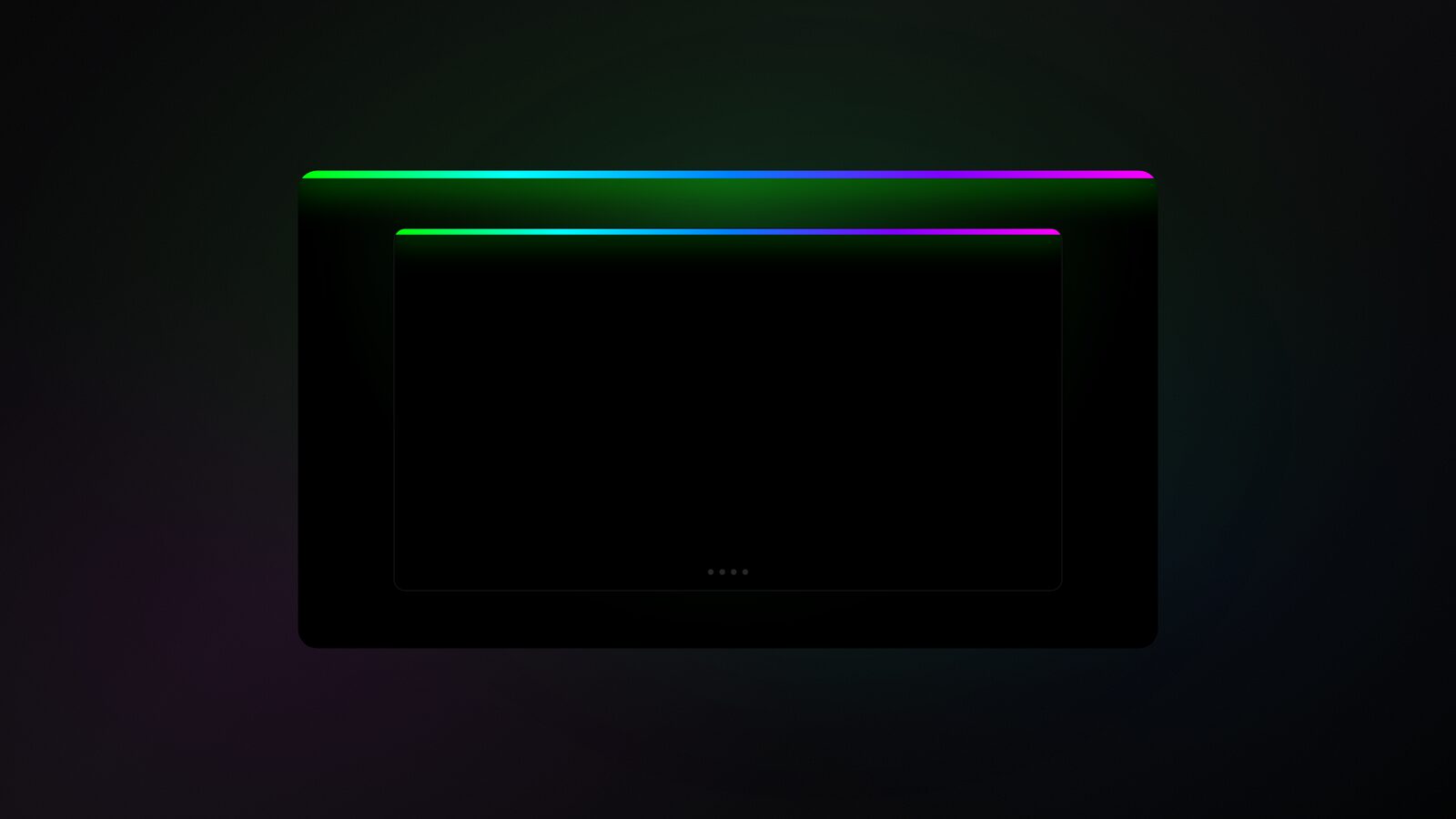
GlowLight draws a gradient glow along the top edge of your screen, or all four edges. It does not read the screen at all. That's also why it never asks for Screen Recording permission: it has nothing to record. The glow comes from the theme you pick, not from the picture. And its edge bar hides itself when an app goes fullscreen, so in a fullscreen YouTube video it steps aside.
Where it does fit: a video playing in a window while you work, and you want a calm, fixed glow at the edge of the screen without buying hardware. The download is free, three bar themes (Solid, Rainbow, Sunset) are free, and the rest is a $2.99 one-time purchase. No subscription.
Which one should you pick
For most people: use YouTube's Ambient mode. It's free, it follows the picture, and it's one menu away.
You want the glow in fullscreen: install Ambient light for YouTube, and accept that Safari users need a second browser for it.
You want light on the actual wall and already own Hue lights: Hue Sync. No Hue gear and no appetite for DIY: a Govee camera kit. Like building things: Hyperion.ng.
You just want the room to feel less harsh, no syncing: a static bias light.
You want a fixed glow on screen while a video plays in a window and you work: GlowLight.
Common questions
Does it work on Netflix? Mostly no. YouTube's Ambient mode is a YouTube feature. The extension runs only on youtube.com. And Philips' own FAQ says Hue Sync doesn't sync protected streams like Netflix and Disney+.
Does YouTube's Ambient mode work in Safari? I couldn't confirm it. Google doesn't list supported browsers. Turn on Dark theme in Safari and check.
Why does a sync app want Screen Recording permission? Because it has to look at the picture to match its colors. Any app that samples your screen needs that permission on a Mac. One that doesn't ask, like GlowLight, isn't following the video.