
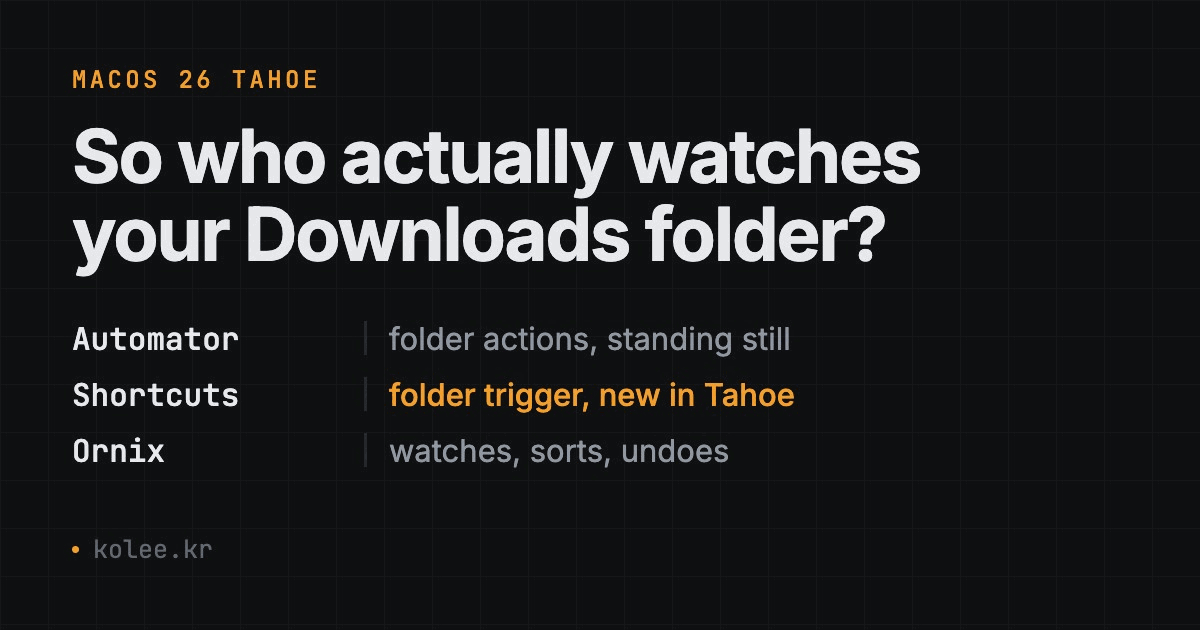
Your Downloads folder has 2,347 files in it. You know this because you just checked, felt a small wave of guilt, and closed the window. macOS Tahoe shipped with Shortcuts automation triggers, folder customization, and a refreshed Finder, features Apple pitched as a file management upgrade. So does that mean a dedicated mac automatic file organizer like Ornix is no longer necessary?
Not really. Here is what Tahoe actually gives you, where it stops, and when a dedicated tool still matters.
The One-Line Verdict
macOS Tahoe built-in tools - Good enough if you enjoy building Shortcuts workflows from scratch and only need basic sorting.
Ornix - The pick if you want files organized in the background without assembling anything yourself, with a rule-based engine that never guesses.
If that settles it, skip to The Final Choice.
Side-by-Side Specs
| macOS Tahoe Built-In | Ornix | |
|---|---|---|
| Developer | Apple | Kolee |
| Price | Free (included with macOS) | Free; $4.99 one-time Pro upgrade |
| Setup time | 30-60 min per automation | Under 2 minutes |
| Rule creation | Build Shortcuts manually | Seven built-in category presets |
| Built-in categories | None | Image, Video, Audio, Document, Compressed, Installer, Other |
| Watched folders | Yes (via Shortcuts triggers) | 1 on free, unlimited on Pro |
| Preview before moving | No | Yes (Organize Preview) |
| Ignores in-progress downloads | No | Yes (.tmp, .crdownload, .part, .download) |
| Date-based subfolders | Manual Shortcut required | Built-in toggle (Pro) |
| Scheduled cleanup | Time-of-day Shortcut trigger | Built-in, daily or weekly |
| Menu bar access | No | Yes |
| Move history + undo | No | Yes (up to 50 records, 7 days) |
| AI dependency | Optional (Apple Intelligence) | None (extension + UTType matching) |
| Requirements | macOS 26 Tahoe | macOS 14.0+ |
The table looks lopsided because these two solve the same problem from opposite directions. Tahoe gives you raw building blocks. Ornix gives you the finished product. Both are valid approaches for very different people.
How Each Approach Actually Works
macOS Tahoe: Real Parts, Assembly Required
Tahoe's headline addition to file management is Shortcuts automation triggers. macOS 26 added a "when a file is added to a folder" trigger on the Mac, so when a file lands in a folder you are watching, macOS can fire off a Shortcut. That Shortcut can move, rename, or sort the file based on whatever conditions you define: file extension, creation date, name pattern, or even content type if you have Apple Intelligence enabled.
This is a real step forward. For years the only trigger-based option on the Mac was Folder Actions and Automator, both of which still ship in Tahoe and still work. Apple's new automation investment, though, is clearly going into Shortcuts, and folder triggers are the first time this kind of workflow has felt native to the modern OS.
Here is the catch: you build every single workflow from scratch.
Want PDFs sorted into a "Documents" subfolder? That is one Shortcut. Want screenshots moved off your Desktop automatically? A second Shortcut. Want old files archived by month? A third one with date-parsing logic, string formatting for folder names, directory creation steps, and move actions. Each workflow needs conditional branches, file filters, and destination paths, all assembled in the Shortcuts editor.
Tahoe also brought folder customization (colors, emoji, symbols), an improved Spotlight, and Desktop Stacks that group files by type right on your desktop. These are nice touches. But none of them actually move or sort your files into a durable structure. Smart Folders are read-only saved searches. Stacks visually group what is already sitting there without changing the underlying folders.
One more thing: Apple Intelligence can do some content-based sorting on supported Macs, like grouping images by what is in them. That requires an M-series chip and works only with specific file types. Useful in narrow situations, not a general-purpose organizer, and not something to build a daily workflow around.
Ornix: Pick Folders, Pick Presets, Done
Ornix works the other direction. You point it at a folder, pick from seven pre-built categories, and turn it on.
Those seven categories are Image, Video, Audio, Document, Compressed, Installer, and Other. Drop a file into a watched folder and Ornix routes it by extension and file type. A screenshot or a .png goes to Image. A .mp4 goes to Video. A .zip goes to Compressed. A .dmg or .pkg goes to Installer. No Shortcuts editor involved, no conditional logic to wire up.
If you would rather see the damage before it happens, Organize Preview shows you exactly which files move where, before anything is touched. It is the feature I would want first from any tool that rearranges my disk, and it is the one a hand-built Shortcut almost never has, because writing a dry-run mode into a Shortcut is more work than writing the Shortcut.
The engine underneath is worth understanding, because it is where Ornix pulls ahead of a hand-built Shortcut. Ornix watches folders with FSEvents at 0.3 second latency, continuously in the background. It is event-driven, not polling, so it is not waking up on a timer and scanning your disk.
It also knows the difference between a finished file and one that is still arriving. Ornix ignores in-progress download files by extension: .tmp, .crdownload, .part, and .download. Browser-download race conditions, where a folder rule grabs a half-written file and moves it before the download finishes, are a classic Folder Actions failure. Ornix waits them out. Before moving anything, it runs a file stability check, with speed presets of Fast 0.1s (the default), Normal 0.5s, Slow 1.0s, and a Custom 0.05 to 2.0s slider on Pro.
There is a smaller touch that you feel more than you notice: re-file protection. If you drag a file back into its original folder within five minutes of it being organized, Ornix will not immediately yank it away again. It compares by inode, so it knows it is the same file you just reached for on purpose.
Everything runs locally and deterministically. The same file always ends up in the same place. No cloud calls, no model interpretation. An exhaustive search of the code for CoreML, MLModel, OpenAI, and GPT turns up zero matches. Categorization is 100% file-extension and UTType matching, which means there is no scenario where a model decides your tax receipt looks like a vacation photo and files it accordingly.
Per folder, you choose realtime mode (the default) or scheduled cleanup that runs daily, on weekdays, or weekly at a set time. Scheduled cleanup is available to everyone as of version 1.6.0, having previously been Pro-only. There is no "every N minutes" polling option, which is deliberate given the event-driven design.
Free, Pro, and What the Line Actually Is
Ornix is free to download on the Mac App Store. On install, a 7-day free trial of Pro starts automatically, so you get to feel the full thing before deciding.
The free tier is genuinely usable, with one hard limit: one watched folder. For a lot of people, pointing Ornix at Downloads and forgetting about it is the entire job, and free covers that. Organize Preview, the Action Window with undo, conflict resolution, scheduled cleanup, speed control, and launch at login are all in the free tier.
Pro is $4.99, a single one-time in-app purchase, not a subscription. It lifts the folder cap to unlimited and unlocks the pieces that matter once you are organizing more than one place:
- Task-based filing. Sort by the job a file belongs to (Acme-Redesign, Q2-Report) rather than by what the file is. This is the one that changes how client work feels.
- Sub-categories. Under Image you get screenshots, photos, and design. Under Document you get code, spreadsheets, and presentations. So a designer does get a "design" folder and a developer does get a "code" folder, but they live as sub-buckets under the top-level categories.
- Custom categories. You can define up to 10 that remap specific file extensions to a destination. This is extension-to-category remapping, not a conditional rule engine, so there are no date, size, or name-pattern rules.
- Automatic conflict resolution. By default, when a name collides, Ornix prompts you and offers Keep Both (numeric suffix), Replace (atomic), or Skip. Automatic resolution without the prompt is Pro.
- Date-based subfolders. Turn it on, and files get sorted into year and month folders.
- Deep organize for clearing an existing backlog in one pass, plus the custom speed slider.
There is also a way to get Pro without paying: post a tweet mentioning Ornix and it unlocks Pro for 7 days, renewable by posting again once it lapses.
Move history works the way you would hope. Ornix stores up to 50 records, keeps them for 7 days, and each one has an undo button that actually reverses the move rather than just logging it.
Current version is 1.6.3, and it requires macOS 14.0 or later.
"Tahoe Has Automation Now" - But in Practice...
Tahoe's Shortcuts automation is a real advance for macOS, and Apple deserves credit for building folder triggers into the OS. But the gap between "technically possible" and "runs every day without you thinking about it" is exactly where a dedicated tool earns its keep.
Setup effort. To replicate what Ornix does out of the box, you need roughly six to eight separate Shortcuts, each with multiple conditions and error handling. A developer comfortable with Shortcuts could knock this out in an afternoon. A writer who just wants clean folders will give up after the second workflow.
The half-written file problem. A hand-built folder trigger fires the instant a file appears, including a .crdownload that Chrome has not finished writing. Users on Apple's Support and Developer forums have long reported Folder Actions grabbing partial files and failing quietly. Ornix's download-extension ignore list and stability check exist specifically to avoid that class of bug. This is not something you would think to build until it burns you.
No dry run. Shortcuts do not preview. You build the workflow, drop a file in, and find out. Ornix shows you the planned moves first, which matters most on the very first run against a folder with years of accumulation in it.
Maintaining rules. Shortcuts break when the world around them changes. Rename a destination folder, add a file type, or restructure a project, and you have to remember which Shortcut to update. Ornix keeps its rules in a single settings panel where you can see exactly what goes where.
Existing file backlog. Triggers fire when new files arrive. They do nothing for the 2,347 files already sitting in Downloads from the last six months. Ornix's deep organize handles the backlog and incoming files together. Tahoe's answer to an existing mess is manual drag-and-drop.
Recovering from a mistake. When a Shortcut moves a file to the wrong place, there is no built-in "undo that last batch." Ornix keeps a 7-day, 50-record history with a working undo button, so a wrong move is a two-click fix rather than a scavenger hunt.
The capability is there in Tahoe. The experience of a tool that just works, and that anticipates the failure modes, is not.
Which Approach to Use - By Scenario
You are a developer who builds Shortcuts for fun
Stick with Tahoe's built-in tools. You will enjoy the granular control and probably want behavior no pre-built app offers. You might still grab Ornix for a one-time cleanup of existing folders, but long-term your own system will do.
You want Downloads and Desktop clean without thinking about it
Use Ornix. Install, point it at a folder, turn it on, done. The free tier and its single watched folder cover this exact case, and the 7-day Pro trial lets you see whether unlimited folders are worth $4.99 before you pay anything.
You are a designer or creative professional
Use Ornix, on Pro. Task-based filing sorts by client or project rather than by file type, which is closer to how creative work is actually organized. The Image sub-categories and up to 10 custom categories handle the specific extensions you deal with all day. Tahoe has no idea what to do with your files unless you teach it, one Shortcut at a time.
You handle documents and want them archived by date
Use Ornix. Date-based subfolders are a single toggle on Pro. In Tahoe Shortcuts, the same result is a multi-step workflow with date extraction, string formatting, and conditional folder creation that takes real effort to build and test.
Budget is the only factor
Both start at zero. Tahoe is free and, if you invest the hours to build and maintain Shortcuts, capable. Ornix is also free to download, and its free tier organizes one folder in the background with no configuration marathon. For most people, that free single-folder setup is the faster path to a clean Downloads folder.
The Final Choice
If you live in the Shortcuts editor and want to own every step of the pipeline, use Tahoe's built-in tools. You will spend the time upfront, but the system is yours and it costs nothing.
For everyone else, get Ornix. It is free to download, it organizes a folder in the background from the moment you finish a two-minute setup, and it handles the ugly edges Apple's building blocks leave to you: half-written downloads, an existing backlog, a wrong move you want to undo. The 7-day Pro trial shows you the full thing (unlimited folders, task-based filing, sub-categories, date-based archiving) before you commit to the $4.99 one-time upgrade.
The worst outcome here is not picking the wrong tool. It is spending an hour tinkering with Shortcuts, getting frustrated halfway through, and going back to dragging files into folders by hand for another year. That costs more than $4.99 in lost time by the end of the week.