
Your Downloads folder just crossed four figures. Somewhere in there is a PDF from March, three duplicate installers you forgot to delete, and a screenshot you took two months ago and never looked at again.
This isn't another "spend your Saturday dragging files into folders" post. It's a walkthrough of setting up Ornix once, using its actual feature set, so Downloads (and Desktop, and wherever else files pile up) stays organized without you touching it again.
What You Need
- Ornix, free on the Mac App Store (Pro unlocks most of what's below)
- 10 minutes, once
Step 1: Point Ornix at Your Downloads Folder
Ornix lives in your menu bar and works by watching folders. Open Settings, add a Watched Folder, and pick Downloads. From this point on, any file that lands there gets checked against your rules the moment it arrives.
The free tier watches one folder. That's enough if Downloads is your only mess. If Desktop and Documents are also chaos, Pro removes the limit, so you can watch all three (plus a client folder, plus a screenshots folder) at once, each with its own rules.
Step 2: Let Categories Sort by File Type
This is the default behavior and it's the one most people never turn off. Ornix ships with 8 built-in categories: Image, Video, Audio, Document, Compressed, Installer, Folder, and Other. It's not just checking file extensions either, it reads the actual file type (UTType under the hood), then falls back to a wide extension map for anything unusual, so RAW camera files, font files, and 3D model formats all land somewhere sensible instead of dumping into Other.
If your work doesn't fit the defaults, Pro lets you build custom categories. There are presets for Design, Code, Font, and 3D Model files, or you can start from scratch and name your own, complete with a custom icon. A freelancer might make a "Client Assets" category that nothing else in the default list would catch.
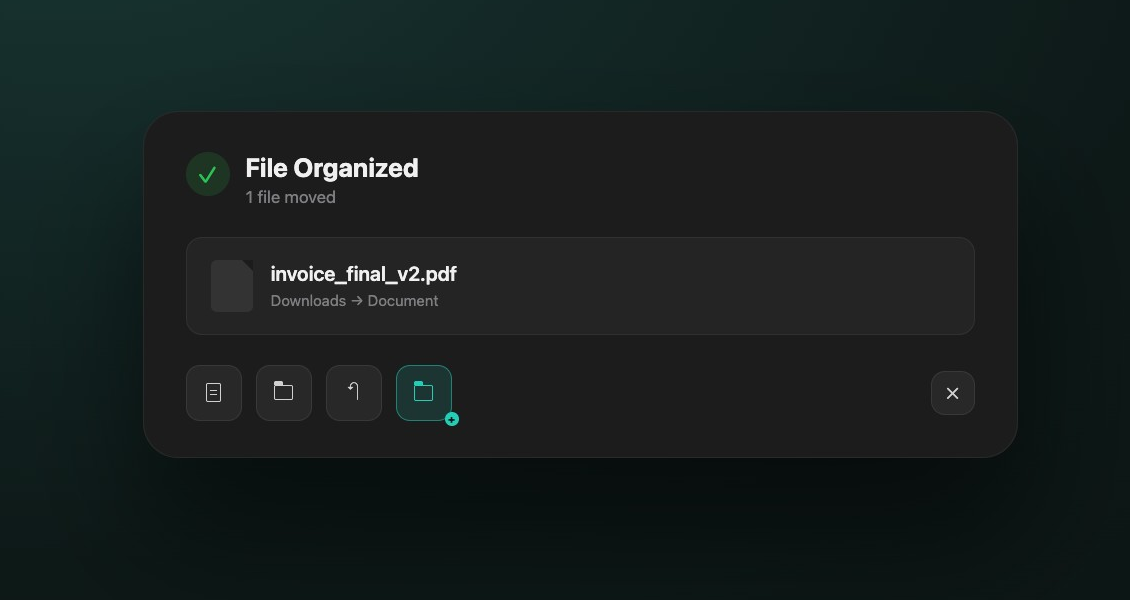
Every move triggers a small card like this the moment it happens. The row of icon buttons at the bottom (hover any of them for a tooltip) opens the file, opens the folder it landed in, undoes the move, or lets you redirect it somewhere else. Nothing disappears into a folder you can't find.
Step 3: Split Documents and Images by What They Actually Are
Category sorting alone still leaves a Document folder with invoices, code snippets, and slide decks all mixed together. Subcategories (Pro) fix that second layer. Turn it on per watched folder and Document splits into Code, Spreadsheets, and Presentations, while Image splits into Screenshots, Photos, and Design files.
This is the part that matters most if Downloads is where screenshots, PSDs, and the occasional font file all pile up at once. Instead of one flat Image folder, you get three folders that actually mean something when you go looking six weeks later.
Step 4: Archive by Date So Old Files Don't Just Keep Piling Up
Category folders solve "what kind of file is this." They don't solve "how far back do I have to scroll to find something from January." Date Subfolders (Pro) adds a second axis: Year or Year-Month. Turn it on and your Document folder becomes Document/2026/ or, if you want more precision, Document/2026-07/.
Tax documents, research PDFs, invoices, anything you'll want by date rather than by name benefits from this. Six months from now you're not scrolling past 400 files to find last February's receipt, you're opening one folder.
Step 5: Organize by Project Instead of File Type
Sometimes "what kind of file" is the wrong question. If you're a freelancer juggling three clients, or a student with five classes, you want files grouped by what they belong to, not what format they're in.
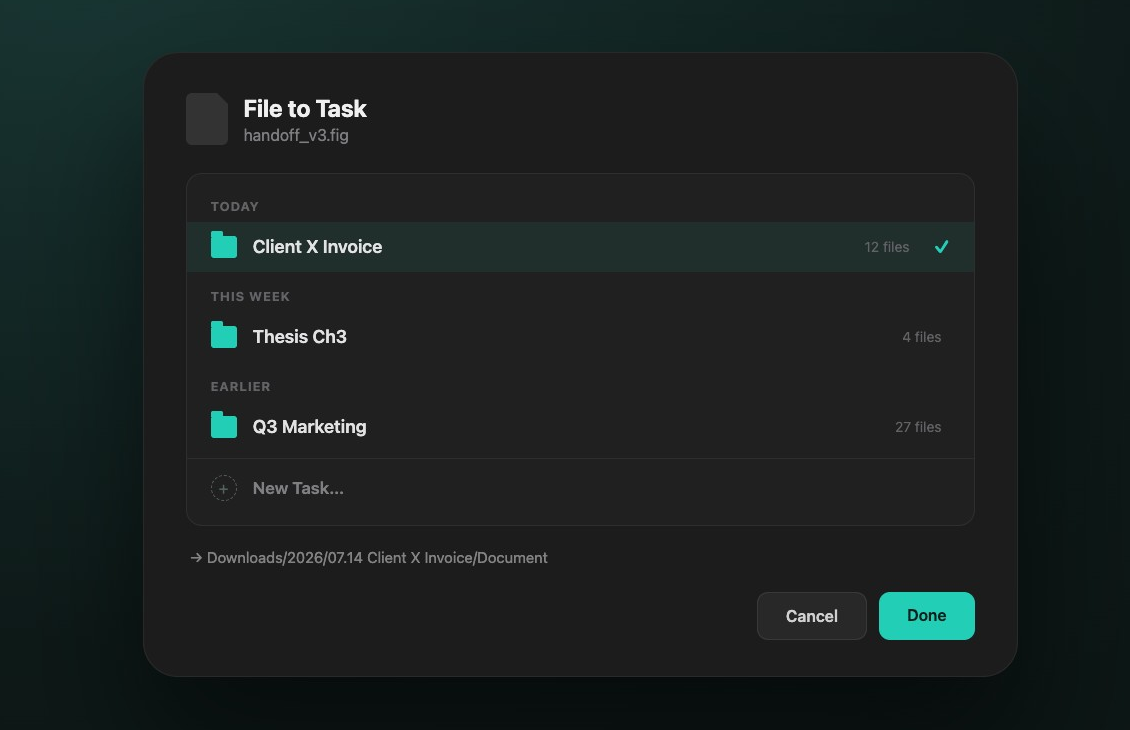
Ornix's Task-based strategy does exactly that. Switch the organization strategy from "By Category" to "By Task," and instead of sorting purely by file type, a new download prompts you to file it to a task. Pick an existing task grouped by Today, This Week, and Earlier, or start a new one. Ornix builds the folder structure for you: year, then task name, then category inside it. A file filed to "Client X Invoice" on July 14th ends up in something like Downloads/2026/07.14 Client X Invoice/Document.
It's a small amount of manual input (you're choosing the task, Ornix isn't guessing) in exchange for a folder structure that matches how you actually think about your work.
Step 6: Set Up Favorites for the Folder You Always Move Things To
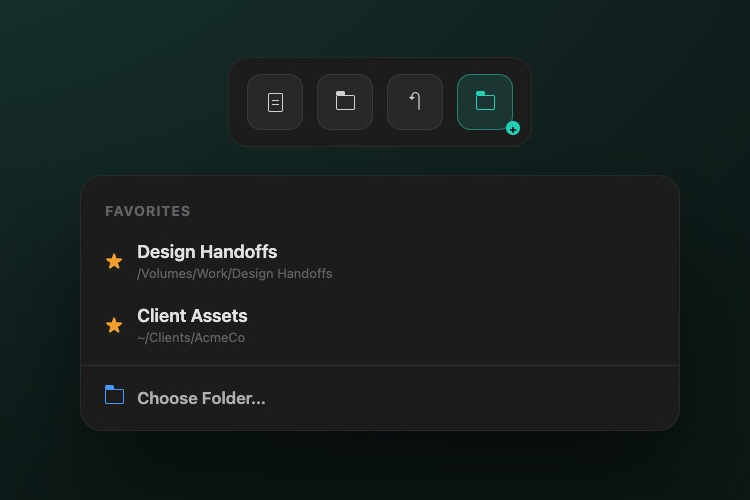
Not every file fits a rule. If you constantly drag things from Downloads into the same "Design Handoffs" folder on an external drive, Favorites solves that without writing a rule for it. Star that folder once, and it's one click away: tap the folder icon in the action card's button row and it's sitting right there above "Choose Folder...", ready to redirect the file instantly.
It's the fastest path from "this doesn't belong in a category" to "this belongs exactly where I always put it."
Step 7: Trigger Cleanups On Demand (or Hands-Free with Shortcuts)
Everything above runs automatically as files arrive. But if you've been ignoring Downloads for a while and want a one-time sweep, Organize Now (Pro) runs an instant cleanup on any watched folder with a single click, no waiting for new files to trigger it.
Ornix also ships native Shortcuts support, so you don't need a script to automate around it. Open the Shortcuts app and you'll find "Organize Folder Now" as an action you can drop into a personal automation (say, every weekday at 6pm), plus "Get Organization Status" if you want to check how many files are waiting before you trigger anything. Say "Organize my Ornix folder" to Siri and it runs without opening the app at all.
Putting It All Together
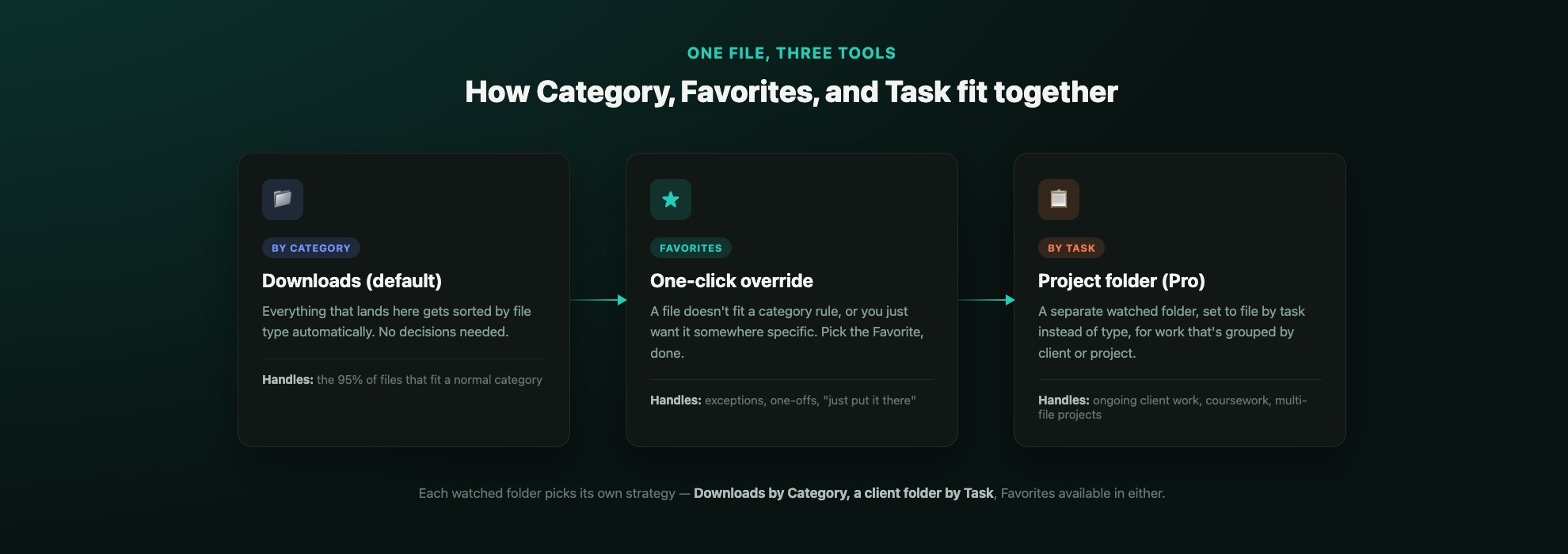
These aren't three competing options you have to pick one of forever. Most people end up running all three at once, just pointed at different things. Downloads stays on Category because most of what lands there just needs sorting by type. Favorites catches the handful of files that don't fit a rule. And a dedicated project or client folder runs Task-based, because that work is grouped by who it's for, not what format it's in.
Common Questions
Does this only work on Downloads?
No. Watch Desktop, Documents, a client folder, whatever you point it at. Free covers one folder; Pro removes the limit.
Will Ornix ever delete a file?
No. It moves files into folders you've defined. If a rule sends something to the wrong place, the undo icon in the action card puts it back in one click.
Do I have to pick between Category and Task-based organization?
Yes, per watched folder, that's the tradeoff. Most people run Downloads by category and a client-facing folder by task. There's no rule saying every watched folder has to use the same strategy.
Where This Leaves Your Downloads Folder
None of this requires remembering to do anything. Set the watched folder once, pick category or task-based filing, decide if you want date archiving, and Ornix takes it from there every time a file lands. The folder that used to have 1,000+ unsorted files in it now sorts itself before you've even noticed the download finished.