
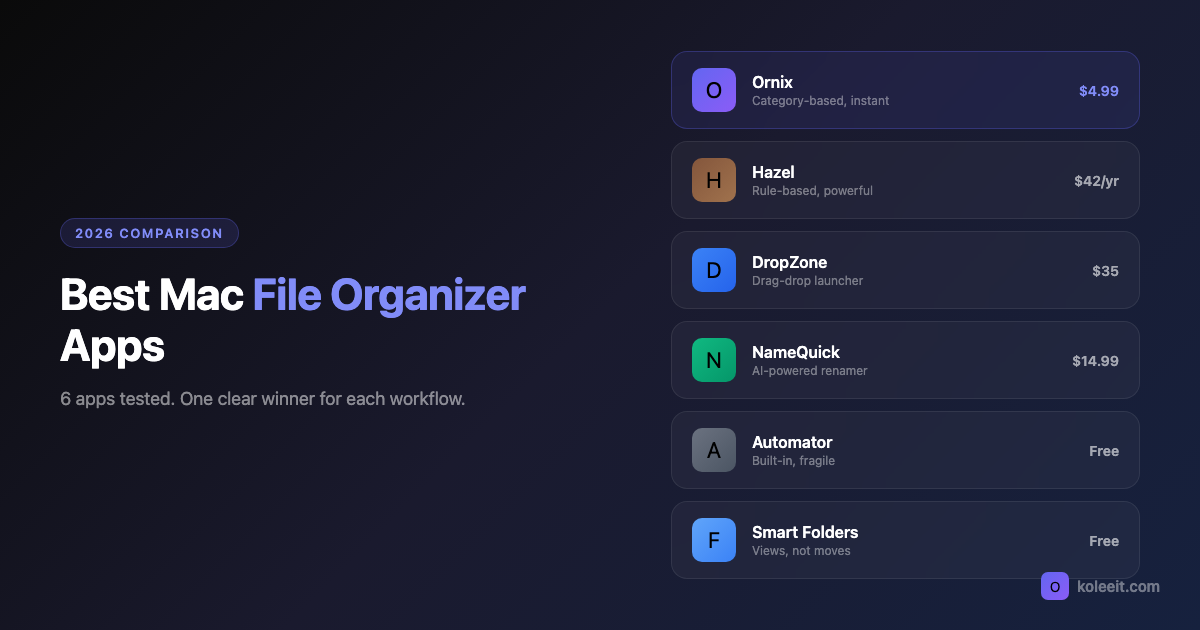
Your Downloads folder has 847 files. Your Desktop has another 200. You need a file organizer for Mac, but there are half a dozen options and they all claim to solve the same problem differently.
I tested six Mac file organizer apps over the past year - some free, some paid, some overkill. Here's what actually matters.
How We Tested
Each app was installed on the same Mac (M2 MacBook Pro, macOS Sequoia) and pointed at a Downloads folder with 500+ mixed files: PDFs, images, source code, installers, archives, and everything in between. We measured three things:
- Time to first result. How long from install to seeing files move.
- Accuracy. Did files land in the right place without manual intervention?
- 30-day reliability. Did it keep working after restarts, updates, and sleep cycles?
1. Hazel ($42/year)
The industry standard. Hazel watches folders and runs rules when files match conditions. You can chain conditions, run AppleScripts, and build genuinely complex automations.
Best for: Power users who think in if/then logic and want maximum control.
Pros:
- Regex pattern matching for file names and content
- Chain multiple actions: rename, move, tag, run scripts
- Trash management with auto-cleanup rules
- Rock-solid reliability over months
Cons:
- Setting up your first useful rule takes 20-30 minutes of reading docs
- $42/year adds up - after three years you've paid $126 for file sorting
- Rule debugging gets complex around rule 15+
If you enjoy writing regex and building conditional chains, Hazel is the right tool. If you just want a clean folder, it's overkill.
2. Ornix ($4.99 one-time)
Full disclosure: I built Ornix. But here's the honest take.
Ornix sorts files into categories (Documents, Images, Code, Archives, and more) with one click or automatically via watched folders. No rules to write - it detects file types and moves them to the right place. Version 1.5 added sub-category sorting for screenshots, design files (.sketch, .fig, .psd), and code files.
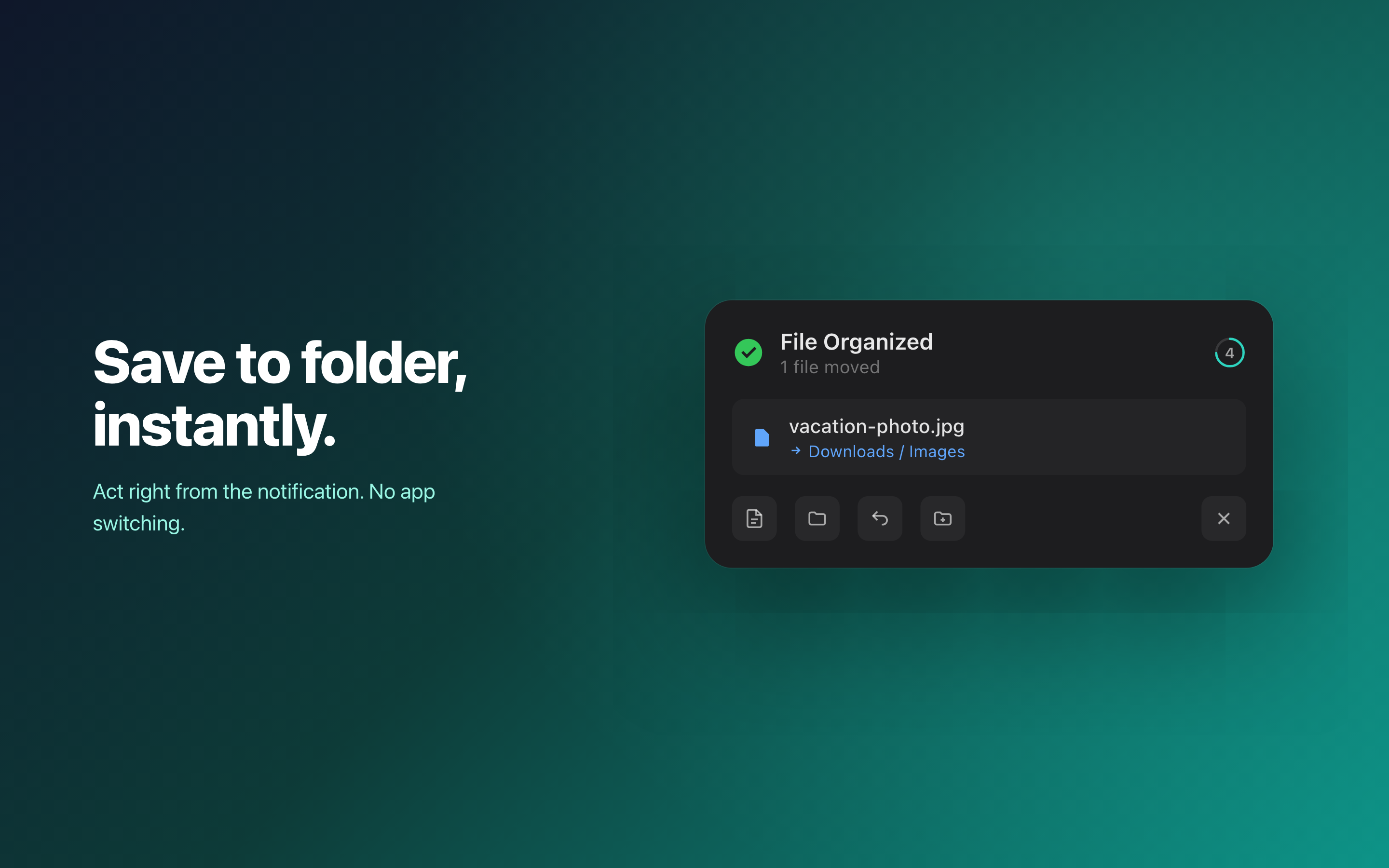
Best for: People who want organized folders without learning a rules engine.
Pros:
- 30 seconds from install to organized folder
- Watched folders auto-sort new files as they arrive
- Sub-category presets for designers, developers, and font collectors
- One-time $4.99, no subscription
Cons:
- Less flexible than Hazel for complex workflows
- No scripting or conditional chains
- Sorts by file type, not by custom logic
3. DropZone ($35 one-time)
DropZone is more of a drag-and-drop launcher than a file organizer. You drag files onto a floating grid, and actions fire - move to folder, upload to server, resize images. Think of it as a visual shortcut palette.
Best for: People who process files one at a time and want quick actions.
Pros:
- Visual, intuitive drag-and-drop interface
- Extensible with custom actions and scripts
- Useful beyond file organization (upload, share, compress)
Cons:
- Nothing is automatic. You drag every file manually.
- Good for workflows, not for keeping folders clean over time.
- $35 for what's essentially a fancy shortcut launcher
4. macOS Automator / Shortcuts (Free)
Apple's built-in tools can move files based on conditions. Folder Actions in Automator watch a folder and run a workflow when new files appear. Shortcuts on Ventura+ can do similar things with a more modern interface.
Best for: People who want free and don't mind tinkering.
Cons: Limited reliability - Folder Actions can silently stop working after restarts. For a deep dive on setting these up and their limitations, see How to Automatically Organize Files on Mac.
5. NameQuick ($14.99 one-time)
AI-powered file renamer and organizer. NameQuick uses OCR and AI to understand document contents and rename files based on what's inside. Strong on PDF and receipt workflows.
Best for: People drowning in invoices, receipts, and scanned documents.
Pros:
- AI understands document content, not just file extensions
- Excellent for receipt/invoice workflows with consistent naming
- OCR extracts text from scanned documents
Cons:
- AI means unpredictable - it might rename a file differently than you'd expect
- More of a renamer than a full organizer
- Sorting into folders is secondary to the renaming feature
6. Finder + Smart Folders (Free)
Don't overlook what macOS already gives you. Smart Folders are saved searches that look like folders. Create one for "PDFs modified this week" or "Images larger than 5MB" and you get instant filtered views.
Best for: Minimalists who want organization without moving files.
Pros:
- Already on your Mac, zero setup
- Dynamic - always up to date
- Non-destructive - files stay where they are
Cons:
- Files stay where they are. Your Downloads folder still has 847 files.
- Smart Folders just give you filtered windows into the chaos.
- No automation, no cleanup, no reduction in clutter
Quick Comparison
| App | Price | Auto-sort | Setup time | Best for |
|---|---|---|---|---|
| Hazel | $42/yr | Yes (rules) | 30+ min | Power users |
| Ornix | $4.99 | Yes (categories) | 30 sec | Quick cleanup |
| DropZone | $35 | No (manual) | 10 min | Drag-drop actions |
| Automator | Free | Yes (fragile) | 1+ hr | DIY builders |
| NameQuick | $14.99 | Partial (AI) | 5 min | Document renaming |
| Smart Folders | Free | No (views) | 5 min | Minimalists |
Which One Should You Use?
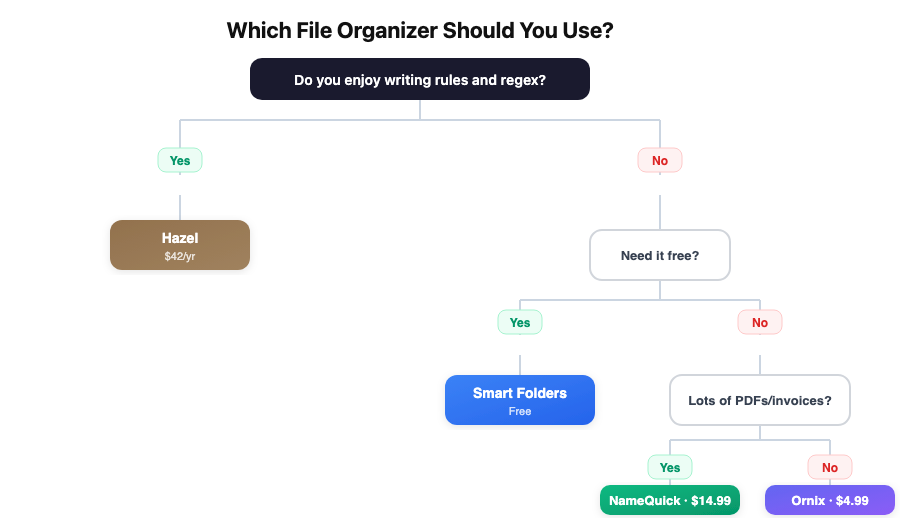
Your Downloads folder is a disaster and you want it fixed now. Ornix. Install, pick a folder, click organize. Done in 30 seconds.
You have complex file workflows with scripts and conditions. Hazel. Expensive, but nothing matches its depth.
You deal with hundreds of PDFs, invoices, and receipts. NameQuick. The AI renaming is useful for document-heavy workflows.
You just want filtered views without moving anything. Smart Folders. Free and already on your Mac.
The honest truth: most people don't need Hazel's depth. They need their Downloads folder cleaned up. That's a $4.99 problem, not a $42/year subscription.
Need help actually cleaning up that Downloads folder? Read How to Clean Up Your Downloads Folder on Mac for a step-by-step guide.