
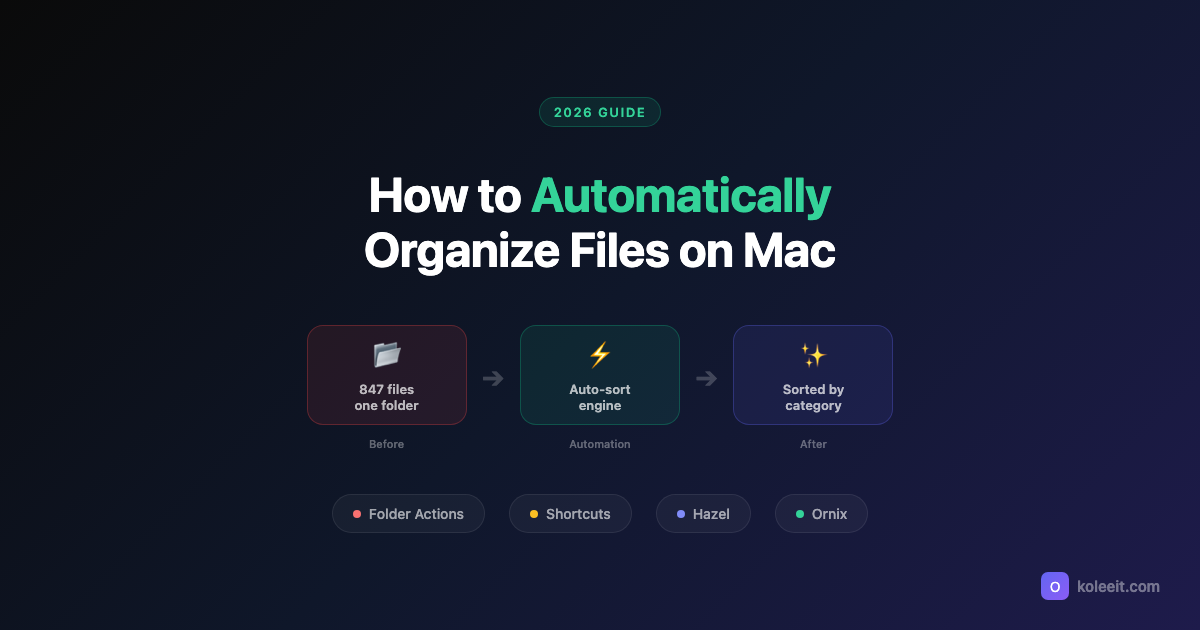
Every Monday morning, I open my Downloads folder and see the same mess. PDFs from last week mixed with screenshots, zip files, random images, and an installer I downloaded three months ago. You can organize files on Mac manually, but it doesn't scale. What you need is automation - files that sort themselves the moment they land.
Here are four ways to automatically organize files on Mac, from free to paid, with honest reliability assessments for each.
Method 1: Folder Actions with Automator (Free)
macOS has a built-in way to watch folders: Folder Actions. When a new file appears in a watched folder, Automator runs a workflow you define.
How to set it up:
- Open Automator, choose New, then Folder Action
- Set "Folder Action receives files added to" to your Downloads folder
- Add a "Filter Finder Items" action (e.g., file extension is .pdf)
- Add a "Move Finder Items" action to your Documents folder
- Save the workflow
What you get: PDFs automatically move to Documents. Images go to Pictures. Installers go to a dedicated folder.
The full picture on reliability:
I used Folder Actions for six months. Here's what happened:
- Week 1-3: Everything worked perfectly. PDFs moved, images sorted, felt magical.
- Week 4: macOS update. Folder Actions silently stopped. No error, no notification. Files piled up for a week before I noticed.
- Week 6: Re-enabled. Worked again. Then stopped after putting the laptop to sleep for a weekend.
- Month 3: Gave up checking whether it was running. Back to manual sorting.
The core problem: there's no indicator showing whether Folder Actions are active. No menu bar icon, no status panel. You find out it stopped when your Downloads folder is a mess again.
Debugging steps if it breaks:
- Open Finder, right-click the watched folder, Services, Folder Actions Setup
- Check if your workflow is still attached
- Open Console.app and search for "Folder Action" errors
- Re-save the Automator workflow (sometimes this re-activates it)
Verdict: Proof of concept, not a daily driver. Use it to learn about file automation, but don't depend on it.
Method 2: Shortcuts Automation (Free)
macOS Ventura introduced Shortcuts automations for file management. More visual than Automator, easier to understand, and Apple is clearly investing in this as the future replacement for Automator.
How to set it up:
- Open Shortcuts, create a new Shortcut
- Add "Find Files" with conditions (kind, name, date)
- Add "Move File" to your destination
- To run on schedule: create a Calendar event with a Shortcuts automation trigger
Practical example - weekly Downloads cleanup:
Find Files where:
  - Location is Downloads
  - Kind is PDF
  - Date Added is before Last 7 Days
Move found files to ~/Documents/Old PDFs/
What Shortcuts can't do (yet):
The critical limitation: Shortcuts can't watch a folder in real-time. There's no "trigger when a new file appears" option. You either:
- Run it manually (defeats the purpose)
- Schedule it via Calendar + automation trigger (batch processing, not instant)
- Assign a keyboard shortcut (semi-manual)
Verdict: The best option for weekly batch cleanup. Set a Calendar reminder, run the Shortcut, done. But not true automatic organization.
Method 3: Rule-Based Automation with Hazel ($42/year)
Hazel is the gold standard for file automation on Mac. Point it at a folder, write rules: "If extension is .pdf and name contains invoice, move to Finances/Invoices and rename to {date}-{name}."
What makes Hazel different from the free options:
- Rules run reliably. Not "sometimes after restarts" - always.
- Pattern matching with regex, dates, file sizes, UTI types
- Action chaining: rename + tag + move + notify in one rule
- Script execution: run Shell scripts, AppleScripts, JavaScript
- Trash management: auto-empty files older than X days
The learning curve reality:
Your first rule is exciting. "PDFs move to Documents! Amazing!" By rule 15, you're debugging why one PDF didn't match because the extension was .PDF (uppercase) and your rule was case-sensitive. You're reading Hazel forums about regex lookaheads.
Hazel rewards investment. If you spend a Saturday building 20 rules, you'll have a system that runs flawlessly for years. The question is whether that Saturday is worth it to you.
Best for: Developers, sysadmins, and anyone who thinks in regex. For a detailed app comparison including Hazel alternatives, see Best Mac File Organizer Apps in 2026.
Method 4: Category-Based Auto-Sorting with Ornix (Free, $4.99 Pro)
A different philosophy: instead of writing rules for each file type, sort everything into categories automatically.
Ornix watches your folders and sorts files into categories - Documents, Images, Code, Archives, Audio, Video, and more. No rules to write. It detects file types and moves them to the right subfolder.
How to set it up:
- Install Ornix from the Mac App Store
- Add a watched folder (Downloads, Desktop, wherever)
- Files auto-sort into category subfolders as they arrive
Version 1.5 added sub-categories: screenshots, design files (.sketch, .fig, .psd), code files, and spreadsheets each get their own folders. Version 1.5.1 added preset templates for designers, developers, and font collectors - one click to set up the folder structure for your workflow.
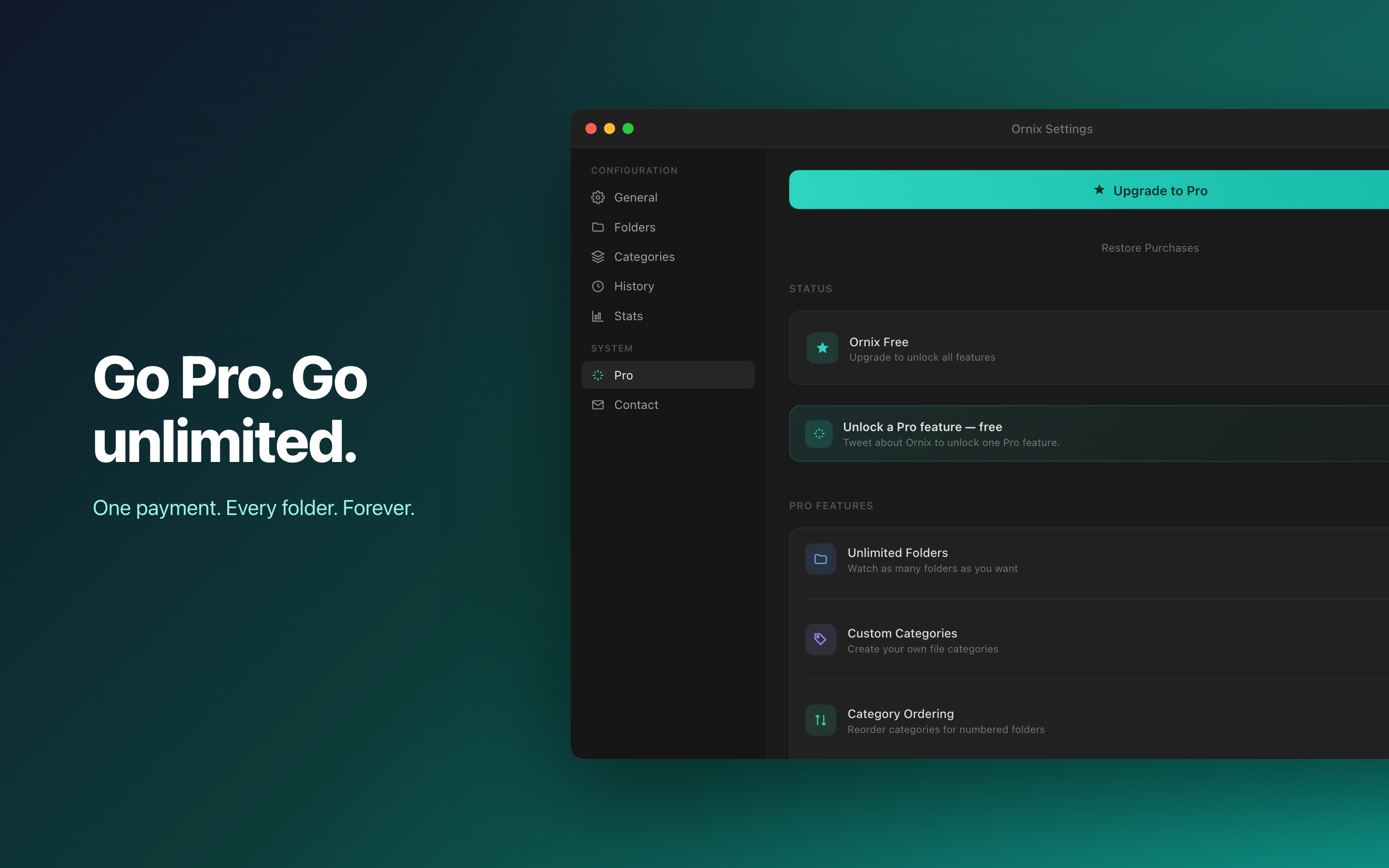
The app itself is free, and the free tier watches one folder. The $4.99 Pro upgrade is a one-time purchase, not a subscription, and it lifts the folder limit along with unlocking sub-categories and date-based subfolders.
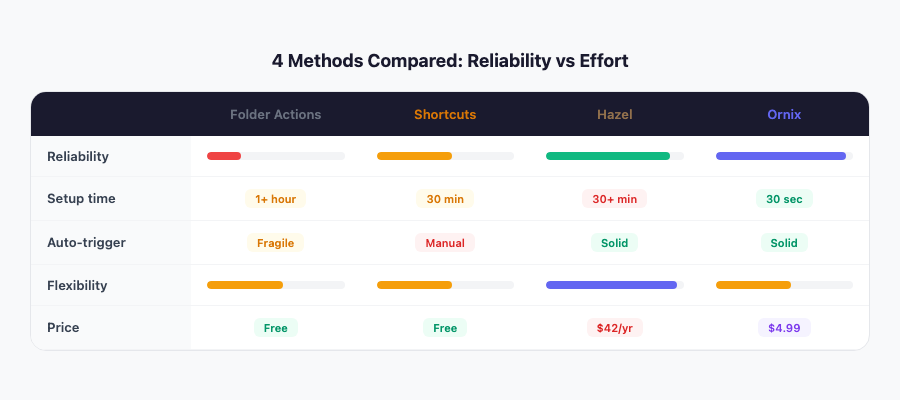
The tradeoff: Less flexible than Hazel. You can't write conditional chains or run scripts. But category sorting covers the vast majority of file chaos for most people, and setup takes 30 seconds instead of 30 minutes.
How These Methods Compare
Which Method Should You Choose?
You want free and reliable batch cleanup: Shortcuts. Run it weekly - it works consistently.
You want free and automatic (but risky): Folder Actions. Set it up knowing it might silently stop.
You want maximum control and don't mind the setup: Hazel. The Saturday investment pays off for years.
You want automatic sorting without any configuration: Ornix. Watched folders, instant categories, done.
Tips That Make Any Method Stick
- Watch fewer folders. Start with Downloads only. Don't watch your entire home directory.
- Keep categories simple. 5-7 is plenty. 30 categories means you'll never find anything.
- Leave an escape hatch. An "Other" or "Unsorted" folder prevents edge cases from breaking your system.
- Check weekly. Automated doesn't mean zero-maintenance. A quick glance once a week catches anything landing in the wrong spot.
The best file organization system is the one you stop thinking about. Set it up once and let it run.
Deciding on a folder structure, not just a tool? See Mac Folder Structure: 5 File Organization Systems. Already decided on an app? See Best Mac File Organizer Apps in 2026 for the full 6-app comparison.