
Ornix 1.2 is out. Instead of a changelog, I want to explain the thinking behind each change - most of them came from watching people use 1.1 and noticing where things quietly broke down.
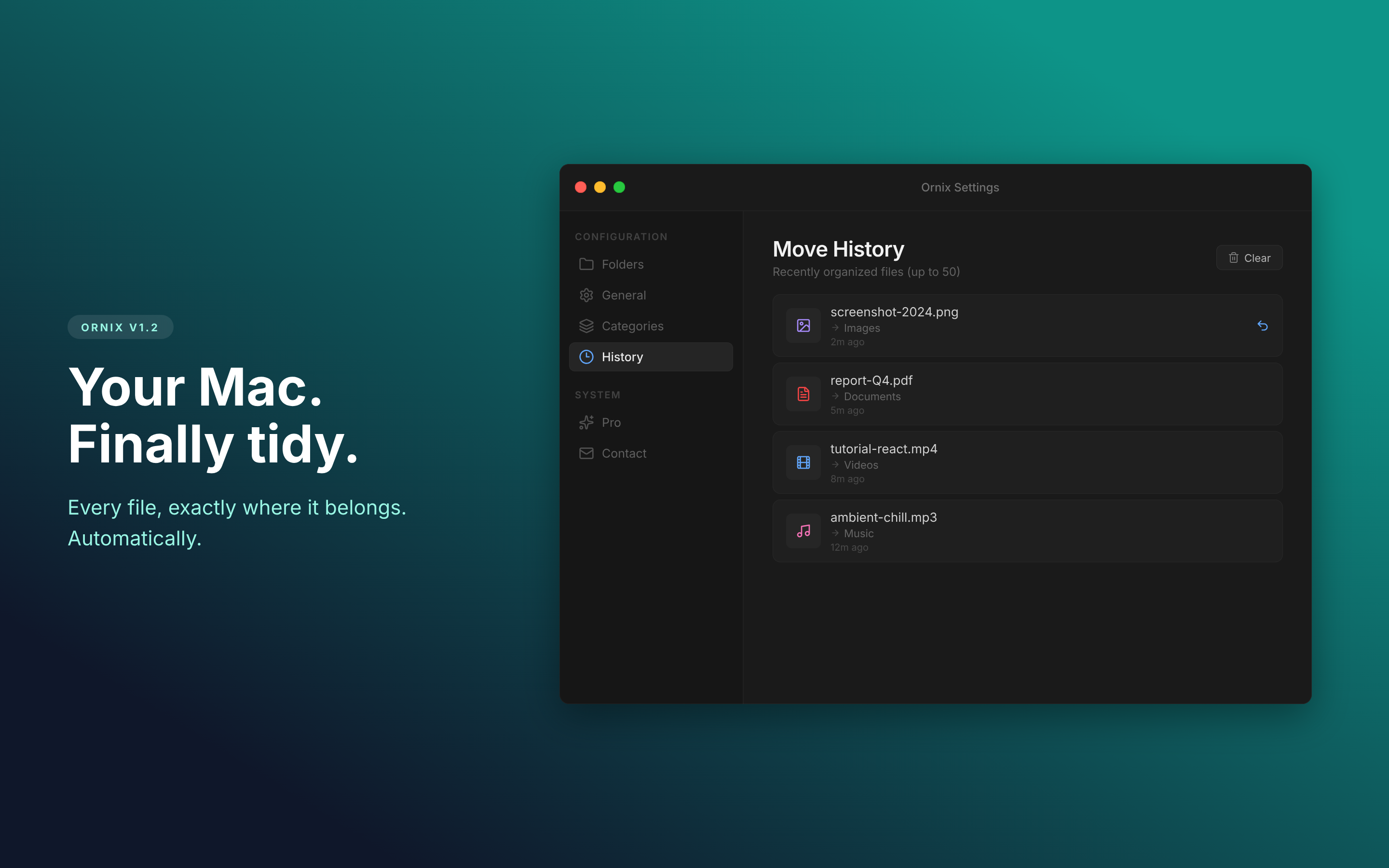
The color change: teal isn't just a coat of paint
The old design used a purple-grey palette. It looked fine in screenshots. In daily use, especially on dark mode Macs, it started to feel heavy. Ornix is a background utility. It should feel calm, not like it's competing for attention.
Teal worked better in testing. It's distinct enough to be recognizable, but doesn't fight the rest of your desktop. The new scheme also has more breathing room in the UI.
Action Window: fixing the five-click problem
Here's something that happened constantly in 1.1: Ornix moves a file to Documents, but it should've gone to a project folder. So you open Ornix, find the file in history, drag it to the right place. Four or five clicks and a context switch.
The Action Window in 1.2 adds a folder redirect directly to the notification. When Ornix moves a file and you want it somewhere else, tap the notification and pick the destination. No app switching, no digging through move history.
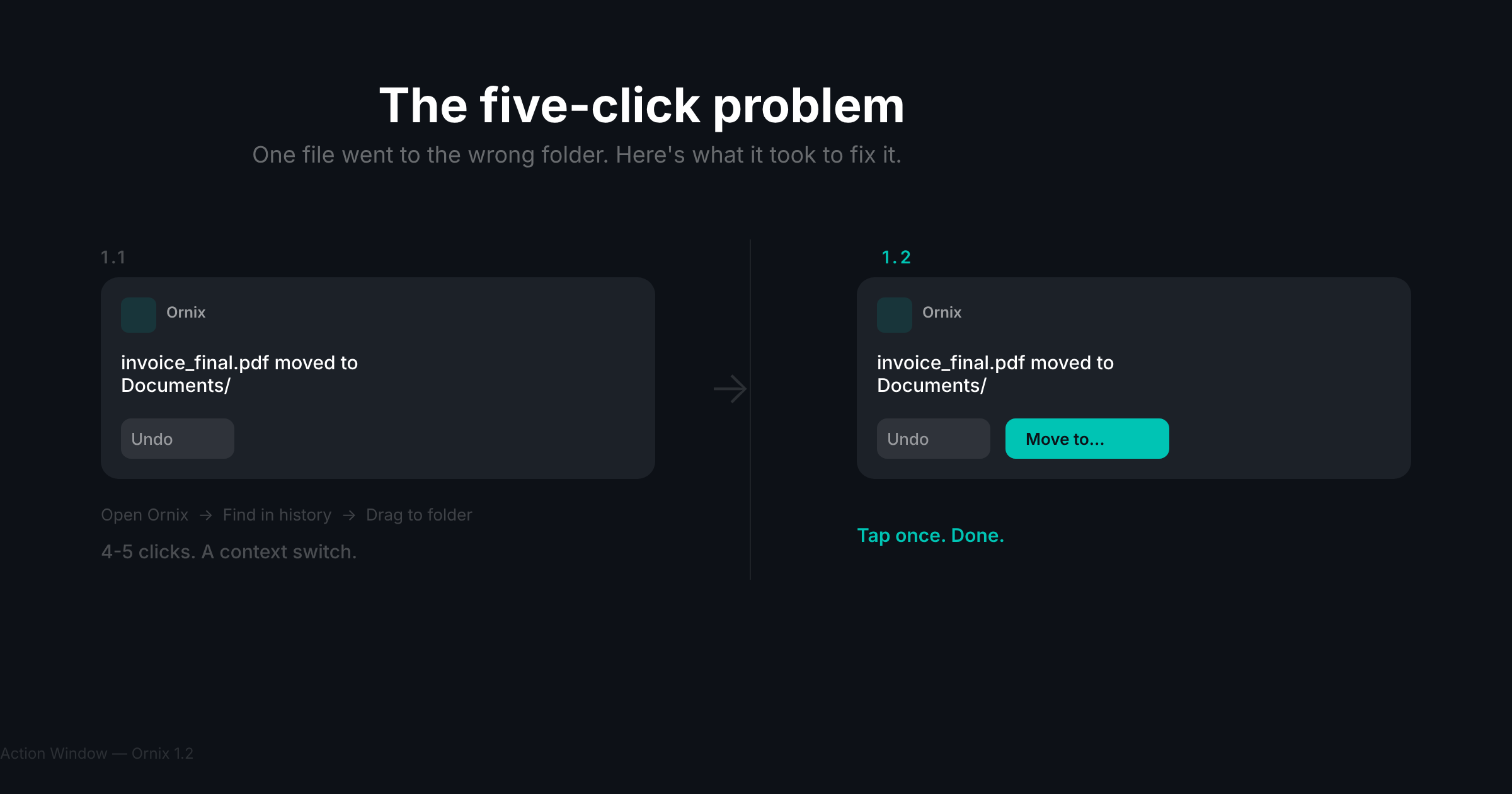
The Undo button was already in 1.1. But undoing and doing nothing isn't the same as redirecting to the right place.
Organize Preview: see what moves before it moves
Running "Organize" on a messy folder used to be all-or-nothing. You'd click, Ornix would move everything, and then you'd find that half the files went somewhere unexpected because of a category rule you'd forgotten about.
Organize Preview shows you the plan before anything moves. Every file, every destination. Review it, adjust if something looks wrong, then confirm.
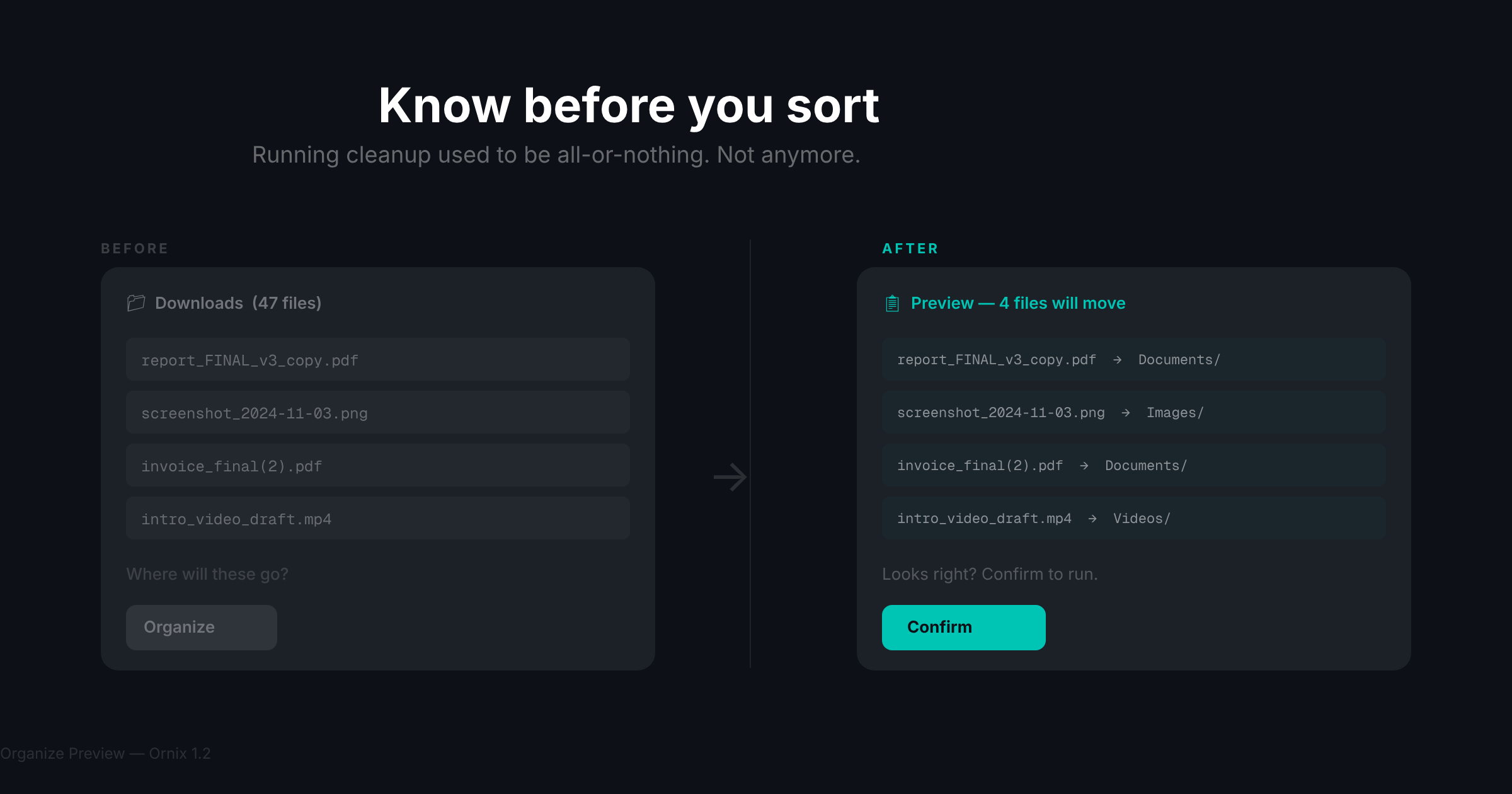
This also turned out to be the best way to understand how your rules actually behave. A lot of users didn't fully realize what their category filters were doing until they could see the output mapped out file by file.
Per-folder category filters: Downloads and Desktop aren't the same folder
The old category system applied the same rules everywhere. Images go to Images, Documents go to Documents. Fine for most cases.
But people use different folders for different purposes. Your Downloads folder probably has everything. Your Desktop might be project-specific scratch space where you don't want Ornix sorting images into a subfolder - you put them there on purpose.
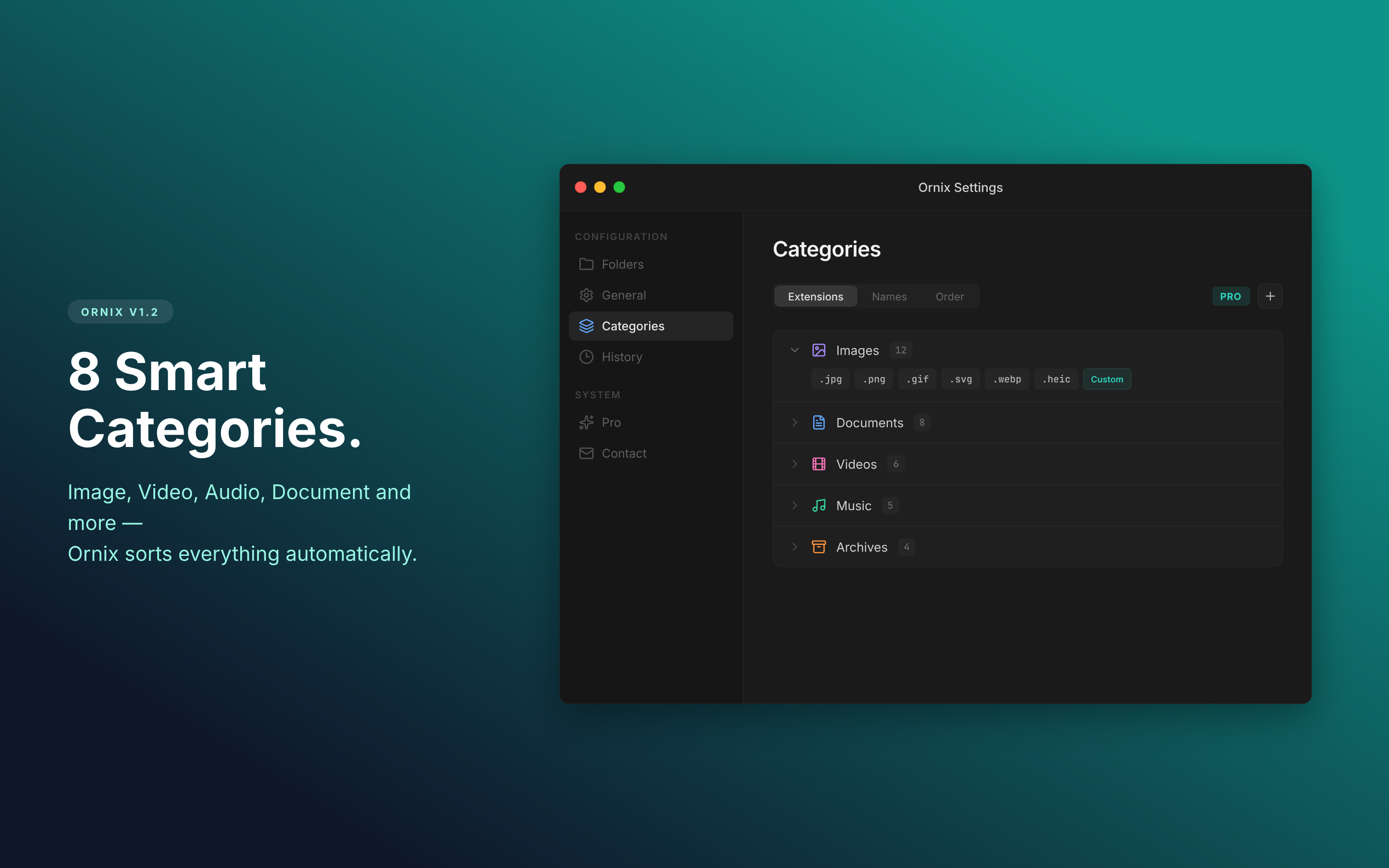
Per-folder category filters let you decide, per folder, which categories are active. Turn off Images for Desktop. Keep everything on for Downloads. The rules are contextual now, not global.
Siri Shortcuts: for when automation breaks at the edges
Ornix is automatic by design. You set it up, it runs, you forget it exists. So why add Shortcuts support?
Because automation breaks down at the edges. Siri Shortcuts lets Ornix plug into the rest of your Mac workflow. Trigger an organize run at the end of a script. Chain it with other automations. Hook it into a Focus mode.
Most users won't need this. But for the ones who do, there was genuinely no workaround before.
Folder type auto-detection: less setup, same result
Every time you added a new watched folder in 1.1, Ornix asked you to configure it from scratch. Folder name, categories, sort rules. Fine if you have specific preferences, annoying if you just want the defaults.
Now when you add a folder, Ornix looks at the name, the path, and what's already in it. If it looks like a Downloads folder, it suggests Downloads defaults. You can still override everything, but first-time setup is much faster.
Pro features: Date Subfolders, Auto Conflict Resolution, folder name customization
Three features that are power-user enough that they'd confuse someone who just wants basic sorting.
Date Subfolders automatically files things into year or month subfolders. If you organize screenshots by month, this is the feature you've been asking for.
Auto Conflict Resolution handles the case where a file already exists at the destination. Instead of prompting every time, you set a rule once - rename, skip, or replace - and Ornix applies it automatically.
Category folder name customization lets you rename the subfolders Ornix creates. "Pics" instead of "Images", "PDFs" instead of "Documents" - set it per category.
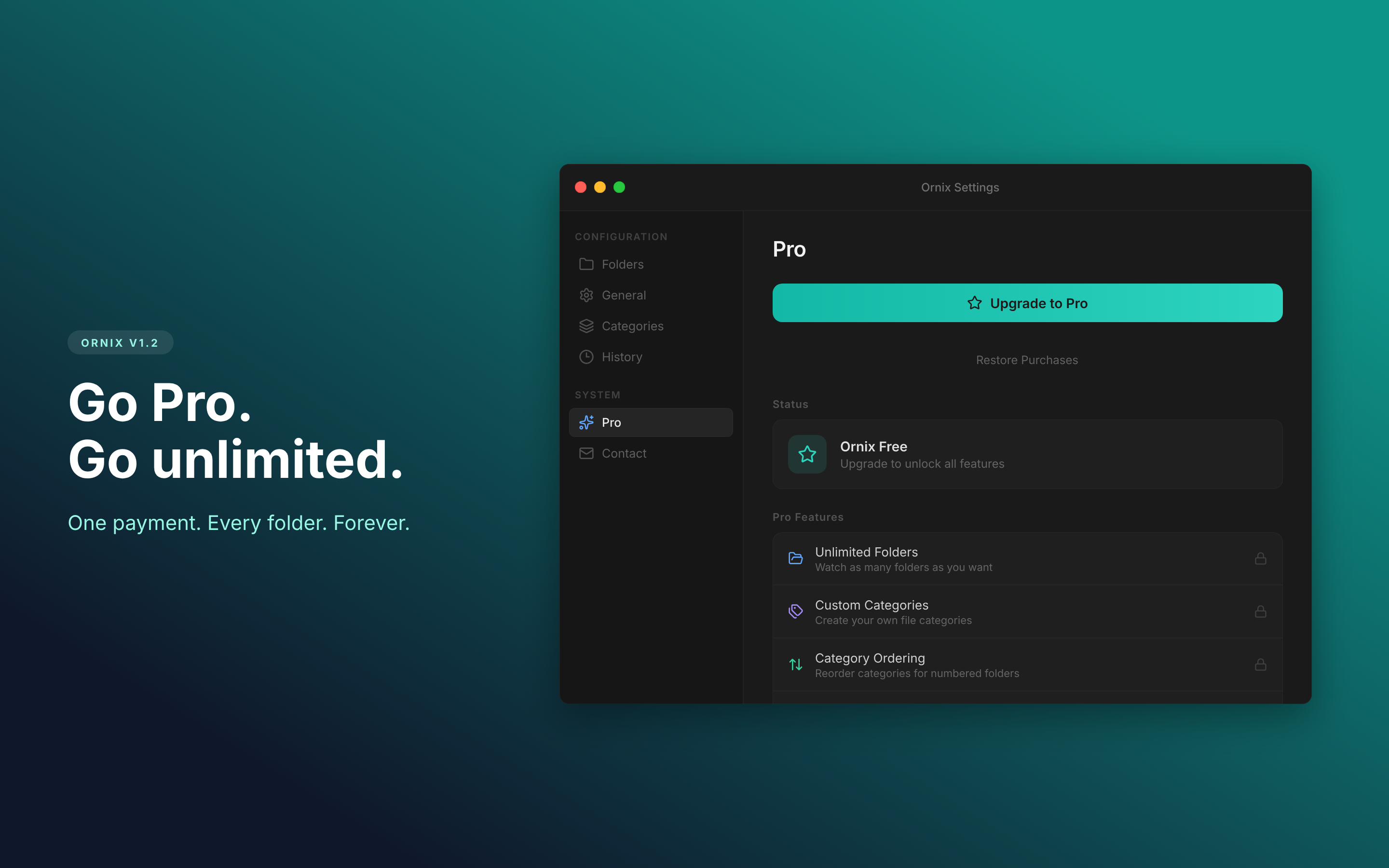
Pro is a one-time purchase, no subscription. It also unlocks unlimited watched folders.
Download Ornix on the Mac App Store
Using Ornix and have thoughts on 1.2? App Store review or the support link in the menu bar.