Ornix 1.1.1 is here. This update adds the most requested feature, a history tab that tracks every file Ornix organizes. We also expanded conflict options and added folder numbering and category management for Pro users. The update includes UI improvements and bug fixes across the board.
The One Downside of Auto-Organization
The most common question we got from Ornix users was "Where did that file I just downloaded go?" Auto-organization works so fast that it creates this problem. You download a file, and it gets sorted instantly. But when you try to open it right away, you can't find it. It's not in the Downloads folder anymore, and you have to dig through Image, Document, or other folders to locate it.
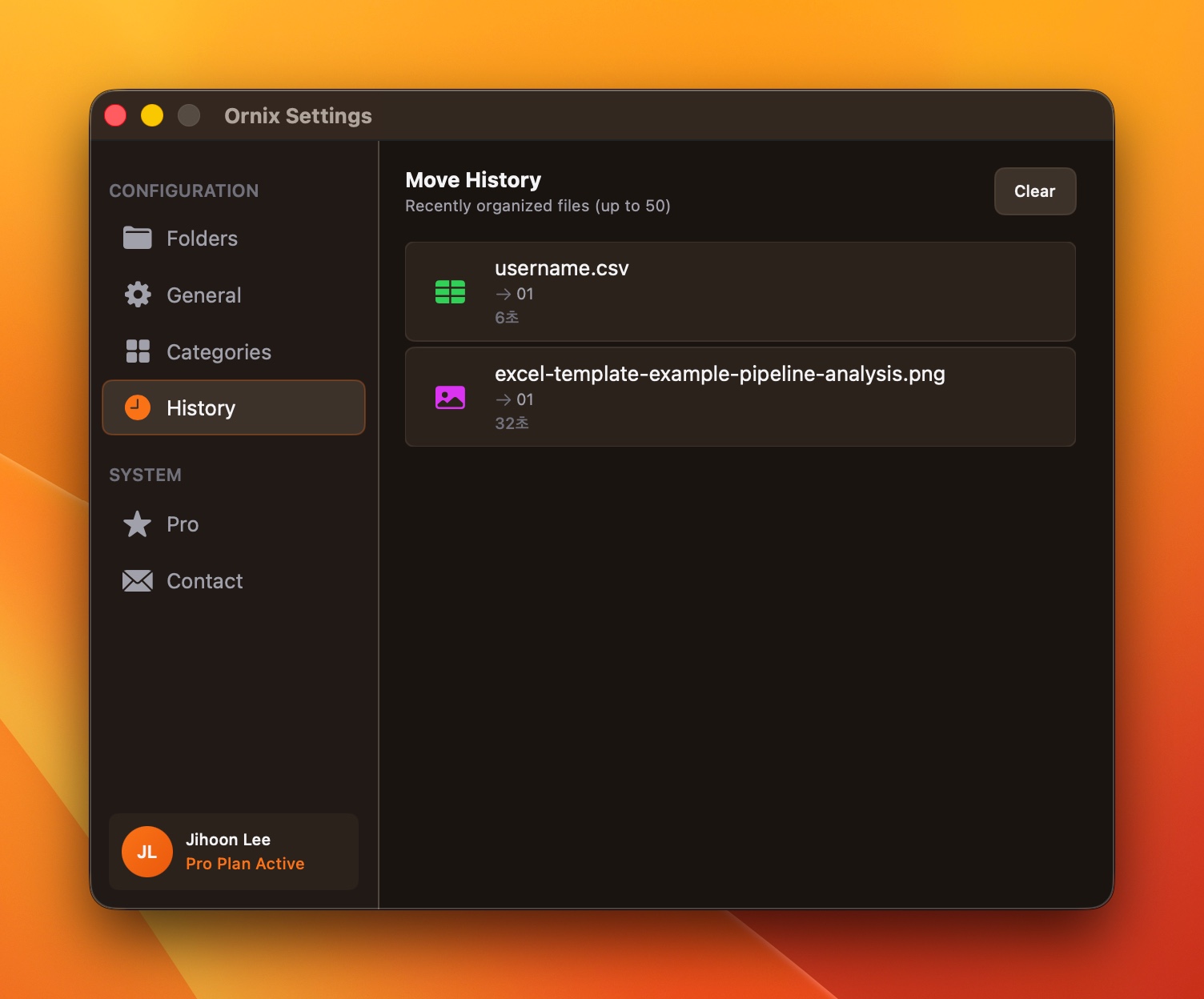
We added a History tab to solve this. Now you can see every file Ornix has organized in one place. The tab shows what file moved, when it moved, where it came from, and where it went. You can jump to the original location or the new location with a single click, so you never have to hunt through folders to find your files again.
Extended Conflict Options
You can now choose what happens when a file with the same name already exists. In previous versions, Ornix handled this automatically. But different situations call for different choices. Sometimes you want to replace the old file with the new one. Other times you want to keep both versions for comparison.
When a conflict occurs, you get three options: replace the existing file, keep the original, or keep both. If choosing every time feels tedious, you can set a default action in preferences. Configure it once to match your workflow and let Ornix handle the rest.
Pro Feature: Folder Numbering
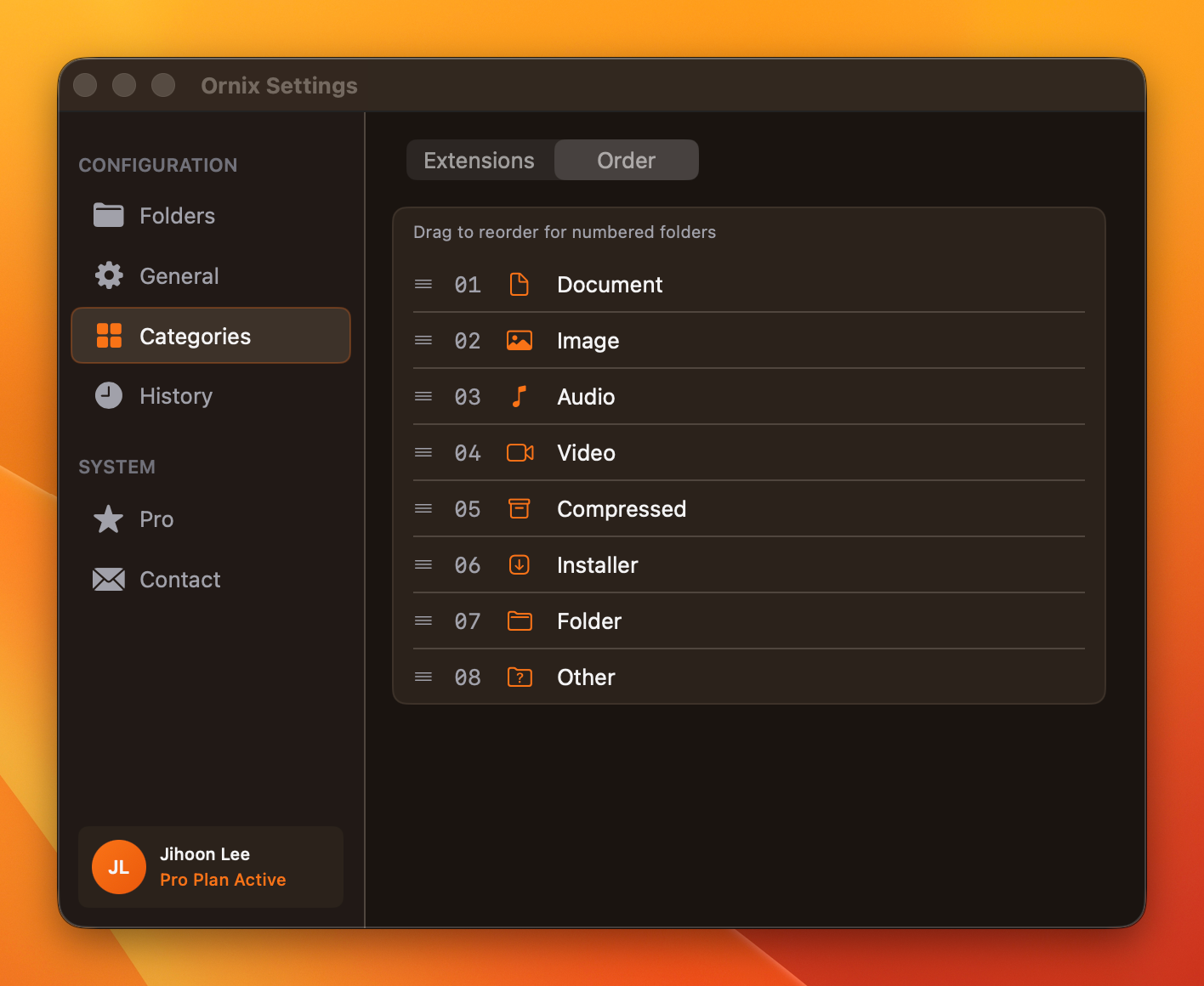
Pro users can now add number prefixes to folders to lock their sort order. Folders display as 01_Image, 02_Document, 03_Video, which means they stay in your preferred order regardless of alphabetical sorting. No more Audio jumping to the top and Video sinking to the bottom just because of their names.
You can arrange folders by how often you use them. Put frequently accessed folders at the top and rarely used ones at the bottom. Once you set the order, it stays that way even as new files come in. Your folder structure remains exactly how you organized it.
Pro Feature: Category Management
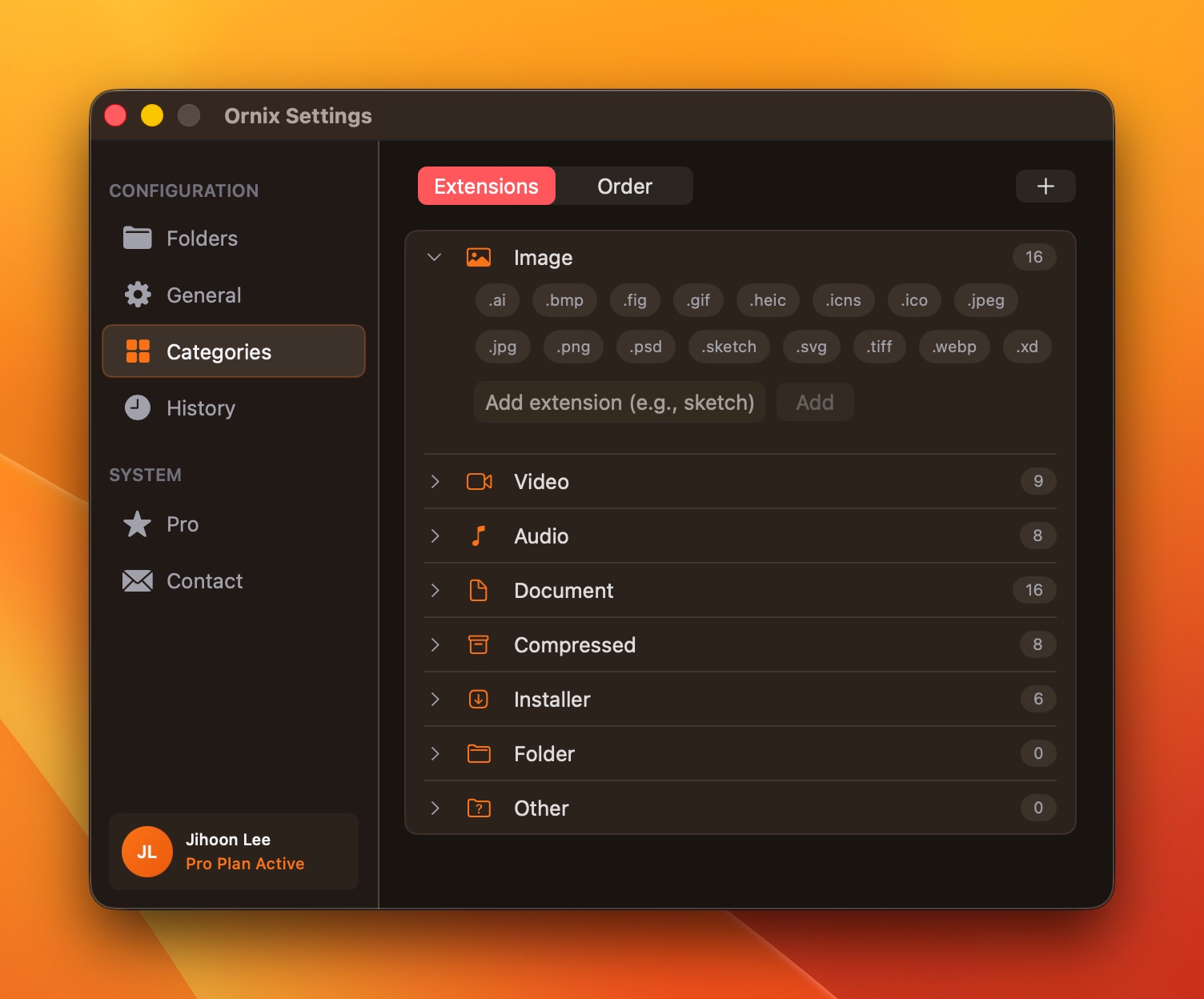
You can create custom categories beyond the default eight. Ornix comes with Image, Video, Audio, Document, Compressed, Installer, Folder, and Other. But depending on your work, these might not be enough. If you work with 3D files, you might want a Models folder for .obj, .fbx, and .blend files. If you code, you might want a Scripts folder for .py, .js, and .swift files.
Category management lets you create folders with any name and map specific file extensions to them. You can add new categories or modify the extension lists of existing ones. Build a classification system that matches exactly how you work.
Interface Improvements
The menu bar icon now uses a folder-style design that better represents what Ornix does. The notification timer also got an upgrade. Previously you could only choose from preset durations, but now you can type in any number you want. Set it to exactly 5 seconds or 30 seconds, whatever works for you.
We improved the menu bar left-click behavior to respond more consistently. Click the icon and the app reacts as expected. We also refined the UI in several other areas. Small changes individually, but together they make for a smoother experience.
Bug Fixes
We fixed files occasionally going to the wrong folders. The extension recognition logic is now more accurate, so files end up in their correct categories. We also fixed the duplicate Finder window issue. Opening a folder from Ornix used to sometimes spawn two identical Finder windows, but now it opens just once.
The repeated conflict notification bug is also gone. Some users saw the same conflict alert multiple times for one file. Now the notification appears once, you make your choice, and the file gets processed immediately.
Free vs Pro
Ornix works great in the free version. You get one watched folder, automatic sorting into eight categories, full history access, and conflict resolution. If you only need to organize your Downloads folder, free covers everything.
Pro is for users who want to watch multiple folders or need finer control. You get unlimited watched folders, date-based subfolders organized by year or year-month, folder numbering, and category management. If you want to organize Downloads, Desktop, and Documents all at once, Pro is the better fit.
| Feature | Free | Pro |
|---|---|---|
| Watched Folders | 1 | Unlimited |
| Auto-Sorting | Yes | Yes |
| History | Yes | Yes |
| Conflict Resolution | Yes | Yes |
| Date Subfolders | No | Year / Year-Month |
| Folder Numbering | No | Yes |
| Category Management | No | Yes |
How to Update
If you already use Ornix, the app will notify you about the update automatically. If you downloaded from the Mac App Store, update through the App Store. If you're new to Ornix, download it from the link below.
Ornix is an automatic file organization app for macOS.