
Mac Folder Structure: 5 File Organization Systems That Actually Hold Up
You just finished a contract for a client. The signed PDF is sitting in Downloads. Does it go in ~/Documents/Clients/Acme/, or ~/Documents/Contracts/2026/, or the project folder you made last month called Acme Redesign? You hover over the Save dialog for four seconds, give up, and leave it in Downloads.
That hesitation is the actual problem. Not the file count.
Look at your Documents folder and you will probably find the evidence: three folders that all have a reasonable claim to the same file. A Work folder from 2023, a Clients folder from when you started freelancing, and a 2026 folder you made in January. Each one made sense the day you created it. Together they mean nothing, because now every incoming file has three plausible homes and you pick a different one each time depending on your mood.
The point here is picking a structure and knowing why, not which app moves the files. If what you actually want is software that watches Downloads and sorts things without you, read Automatic File Organizer for Mac: 4 Ways Tested instead. Automation is the easy half. It only helps once you have decided what the folders are supposed to mean, and pointing a tool at an incoherent tree just produces an incoherent tree faster.
There are five structural systems worth knowing, and they are not interchangeable. Each one answers the "where does this go" question with a different rule, and each one breaks under a specific kind of workload. What follows is how each one behaves, and where it stops working.
Method 1: Category-Based Organization (by File Type)
Best for: Anyone with a cluttered Downloads or Desktop folder. The fastest way to go from chaos to order.
Category-based organization sorts files by what kind of file they are - documents, images, videos, archives, code. Not by topic, not by project. Pure file type classification.
This is the foundation of file organization. Before you think about projects or tasks, your files need to be sorted by type first.
A typical structure:
~/Organized/
├── Documents/
│   ├── report-q1-2026.pdf
│   ├── meeting-notes.docx
│   └── budget-2026.xlsx
├── Images/
│   ├── screenshot-2026-05-19.png
│   ├── profile-photo.jpg
│   └── diagram-v2.svg
├── Videos/
│   ├── screen-recording-demo.mp4
│   └── presentation-final.mov
├── Archives/
│   ├── project-backup.zip
│   └── old-files-2025.tar.gz
├── Music/
│   └── podcast-episode-42.mp3
├── Code/
│   ├── script.py
│   └── config.json
└── Others/
    └── everything-else
Why file type first:
Your Mac already thinks in file types. Spotlight searches by kind. Quick Look renders by extension. Finder can sort by type. When you organize by file type, you're working with the operating system instead of against it.
The alternative - organizing by topic like "Finance", "Marketing", "Personal" - sounds logical but creates an impossible question every time you save a file: "Which topic does this belong to?" A PDF could be a contract, an invoice, a whitepaper, or a resume. But it's always a document. File type is unambiguous.
Rules that make it work:
- Sort by extension, not by content. PDFs go in Documents. PNGs go in Images. ZIPs go in Archives. No judgment calls needed.
- Keep it flat. You don't need subfolders inside Images for "Screenshots" vs "Photos" on day one. Start flat. Add subfolders only when a category grows past 50 files.
- Use one inbox. Let files land in Downloads or Desktop. Sort them into categories periodically - or better, automate it.
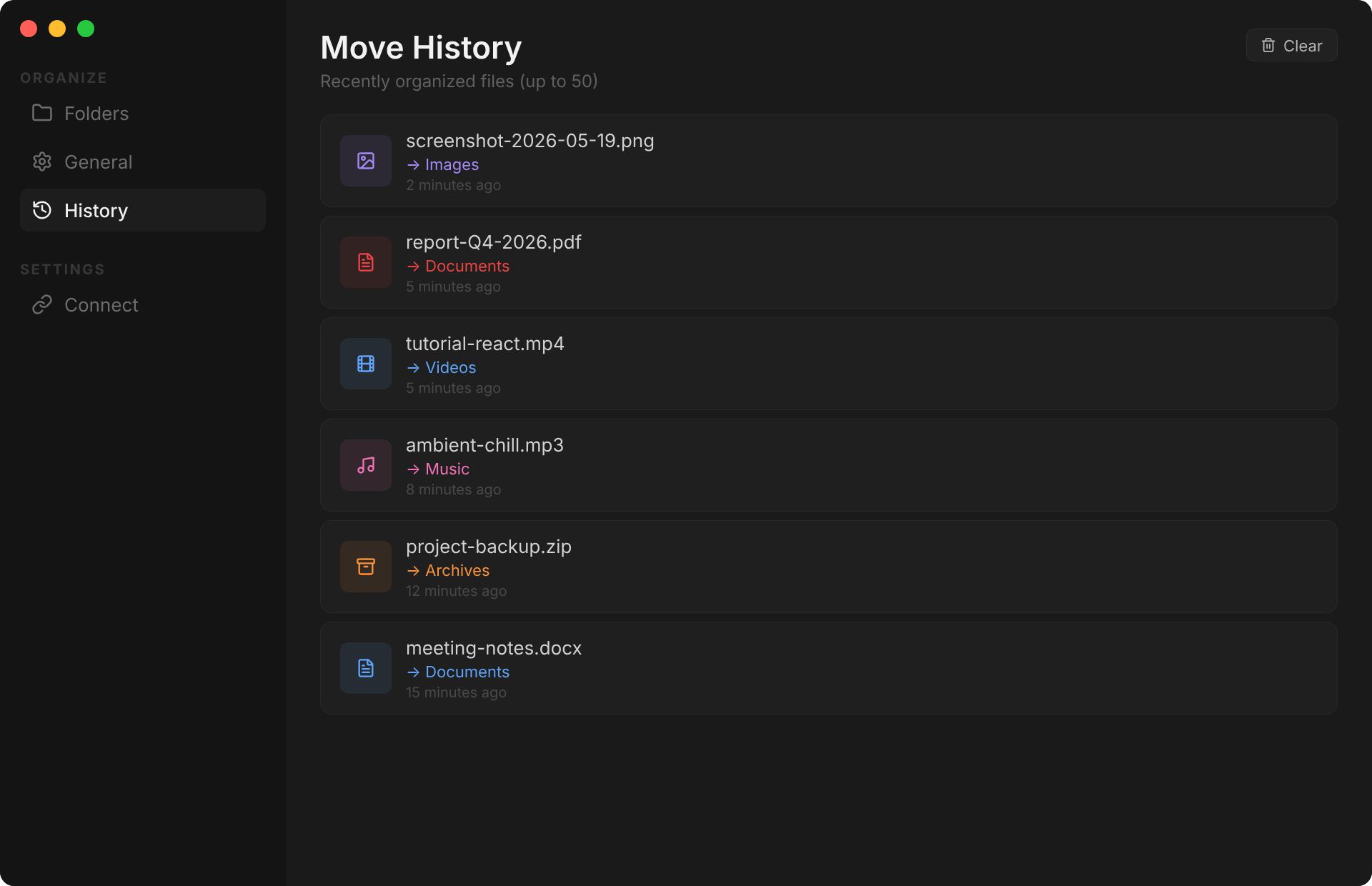
Ornix is built around this exact approach. It watches your folders and sorts files into type-based categories - Documents, Images, Videos, Archives, and more - based on file extension and name patterns. One click to organize an entire folder. You can preview every move before it happens and undo anything instantly.
The weakness:
File type classification tells you what a file is, but not why it exists. Once your files are sorted by type, you might still need to search within a category to find a specific document. For that, pair it with good file naming or one of the methods below.
Method 2: Project-Based Organization
Best for: People who work in projects. Freelancers, developers, designers - anyone whose work has clear start and end points.
Instead of organizing by file type, you organize by what you're working on. Each project gets its own folder with everything inside it - documents, images, exports, notes - regardless of file type.
A typical structure:
~/Projects/
├── Active/
│   ├── Website-Redesign/
│   │   ├── assets/
│   │   ├── docs/
│   │   └── exports/
│   └── Q2-Marketing-Campaign/
│       ├── copy/
│       ├── creatives/
│       └── analytics/
├── On Hold/
│   └── Mobile-App-V2/
└── Completed/
    └── 2026-Brand-Refresh/
Rules that make it work:
- Active / On Hold / Completed. Three states. When a project wraps, move it to Completed. This keeps your Active folder lean - you should never have more than 5-7 active projects visible.
- Everything for the project stays in the project folder. Don't split assets across a global "Images" folder and a project folder. Colocation beats categorization when work is project-scoped.
- Archive aggressively. A project that hasn't been touched in 30 days moves to On Hold. 90 days? Completed. Don't let zombie projects clutter your active workspace.
When to use it vs. category-based:
The key question: when you need a file, do you think "where's that PDF?" (category) or "where's the stuff for Project X?" (project). If the answer is the latter, this is your method.
Many people use both. Category-based (Method 1) for general files that don't belong to any project - random downloads, screenshots, personal documents. Project-based for active work with clear scope.
The weakness:
Reference materials don't belong to any project. Where do you put your tax documents? Your personal notes? Your app licenses? Project-based organization needs a separate "Reference" area for non-project files.
Method 3: Task-Based Organization
Best for: People who want a work journal through their folder structure. Anyone who needs to answer "what did I do on May 18th?" or "what work did I do in 2026?"
Task-based organization is different from project-based. Projects are ongoing, structured efforts. Tasks are the individual things you do each day - some recurring, some one-off. This method organizes by when you did the work and what the work was.
A typical structure:
~/Work/
├── 2026/
│   ├── 05.18-Client-Call-Notes/
│   ├── 05.18-Logo-Revision-Final/
│   ├── 05.19-Tax-Document-Prep/
│   ├── 05.19-Server-Migration/
│   └── 05.20-Quarterly-Report/
├── 2025/
│   ├── 12.15-Year-End-Review/
│   ├── 12.10-Office-Setup/
│   └── ...
Why this works:
The power of task-based organization is retrospection. Open your 2026 folder and you can see every piece of work you did that year, in chronological order. Need to remember what you worked on last Tuesday? Scroll to the date. Writing a year-end review? The folder is your complete work journal.
This method is especially useful for work that doesn't fit neatly into projects or categories:
- A one-off client request that took an afternoon
- Research for a decision that didn't lead to a project
- Miscellaneous admin work - updating a contract, fixing a config file
- Quick tasks that span multiple domains
Work isn't always projects. There are recurring tasks, one-off requests, and random things that need doing but don't deserve their own project folder. Task-based gives all of that a home.
Rules that make it work:
- Format: MM.DD-Task-Name. The date prefix sorts everything chronologically. The task name tells you what it was. You don't need more.
- One folder per task, not per day. If you did 3 tasks on May 18th, you get 3 folders:
05.18-TaskA/,05.18-TaskB/,05.18-TaskC/. This keeps each task's files together. - Year as the top-level boundary. Start a new year folder on January 1st. Previous years become your archive automatically.
- Don't force it. Not every piece of work needs a task folder. If something clearly belongs in a project or category, put it there. Task-based is for the stuff that doesn't have an obvious home elsewhere.
The weakness:
You won't always maintain perfect discipline with this system - and that's fine. The value is having a default place for one-off work instead of dumping it on the Desktop. Even if you only use it for 60% of your miscellaneous tasks, that's 60% more organized than before.
Method 4: Date-Based Organization
Best for: People who think in time. Accountants, lawyers, and anyone dealing with regulatory or compliance documents that need chronological archival.
Date-based organization uses time as the primary axis. Files are stored in year/month folders, making it trivial to find anything if you remember roughly when you created or received it.
A typical structure:
~/Documents/
├── 2026/
│   ├── 01-January/
│   ├── 02-February/
│   ├── 03-March/
│   ├── 04-April/
│   └── 05-May/
│       ├── 2026-05-15_Invoice_ClientA.pdf
│       ├── 2026-05-17_Meeting-Notes.md
│       └── 2026-05-19_Contract-Amendment.docx
└── 2025/
    └── ...
How it differs from task-based:
Task-based (Method 3) organizes by what you did - it's a work journal. Date-based organizes by when files arrived or were created - it's an archive. You don't name folders by task here. You simply file documents into their month and move on.
Date-based is passive. Task-based is active. Date-based is for documents you need to keep. Task-based is for work you want to remember.
Rules that make it work:
- ISO date prefix on filenames.
YYYY-MM-DD_Description.ext. This sorts files chronologically within any folder, and makes Spotlight searches predictable. - Don't nest deeper than Year - Month. Adding week or day subfolders creates too many empty folders and too much clicking.
- Pair with Spotlight or search. Date-based systems rely on search as the primary retrieval method. The folder structure is for archival order, not for browsing.
The weakness:
You'll rarely browse a date folder and find what you need on the first try. Date-based organization is an archival system, not a working system. It's excellent for records you need to keep but seldom access. For active work, combine it with project-based or task-based.
Method 5: Hybrid Systems (PARA and Johnny Decimal)
Best for: Productivity enthusiasts who want a system that scales. People managing both active work and long-term reference material.
Pure category, project, task, or date systems each have blind spots. Hybrid systems combine elements from all of them into a coherent framework.
PARA Method (by Tiago Forte)
PARA splits everything into four buckets:
- Projects - Active work with a deadline (project-based)
- Areas - Ongoing responsibilities with no end date (category-based)
- Resources - Topics of interest for future reference (category-based)
- Archives - Inactive items from the other three (date-based archival)
~/
├── 1-Projects/
│   ├── Launch-New-Feature/
│   └── Tax-Filing-2026/
├── 2-Areas/
│   ├── Health/
│   ├── Finances/
│   └── Home/
├── 3-Resources/
│   ├── Design-Inspiration/
│   ├── Programming-References/
│   └── Book-Notes/
└── 4-Archives/
    ├── [Completed Projects]/
    └── [Old Resources]/
The numbered prefixes keep the folders in the right order. Projects always appear first because they need the most attention.
Johnny Decimal
Johnny Decimal assigns every folder a unique number:
10-19  Administration
  11  Invoices
  12  Contracts
20-29  Projects
  21  Website Redesign
  22  Mobile App
30-39  Reference
  31  Design Assets
  32  Documentation
Each item gets a decimal ID: 21.01 Homepage Mockup, 21.02 Navigation Spec. The beauty is that once assigned, the ID never changes. You can mention "check 21.03" in a meeting and everyone knows exactly where to look.
The weakness:
Both systems require upfront investment to set up and ongoing discipline to maintain. If you're the type who won't spend 30 minutes designing a system before using it, start with a simpler method and evolve into a hybrid system as your needs grow.
Which Method Should You Use?
| Method | Setup Time | Maintenance | Best For |
|---|---|---|---|
| Category (File Type) | 5 min | Low | Cluttered folders, general file sorting |
| Project-Based | 20 min | Medium | Deliverable-focused work, freelancers, developers |
| Task-Based | 5 min | Low | Work journaling, one-off tasks, retrospection |
| Date-Based | 10 min | Low | Archival records, compliance, legal docs |
| Hybrid (PARA/JD) | 45 min | High | Knowledge workers managing multiple areas |
The honest recommendation: Most people need a combination, not a single system. Here's what works in practice:
- File type categories as the base layer - sort everything by Documents, Images, Videos, Archives first
- Project folders for active, structured work
- Task folders for one-off work that doesn't belong to a project
- Date folders for archival documents you need to keep but rarely touch
You don't need the perfect system. You need the right system for each type of file. Mix and match.
Practical Tips That Work With Any Method
-
Process your Desktop weekly. Whatever system you pick, schedule a 5-minute weekly review. Move anything that landed on your Desktop to its proper home.
-
Use dates in filenames.
2026-05-19_meeting-notes.mdsorts correctly everywhere. No exceptions. -
Flatten deep hierarchies. If a path is longer than 3 clicks from your home folder, it's too deep. Use Spotlight or file search instead of nesting.
-
One inbox, one outbox. Keep a single "Inbox" folder for files you haven't sorted yet. Process it daily. If it grows past 20 items, your system is too complex.
-
Automate the base layer. File type sorting is repetitive and predictable - the perfect candidate for automation. Tools like Ornix watch your folders and sort files by type automatically. Set the rules once and forget about it. Then apply project-based or task-based organization on top for your active work.
Where to Start
Start with file type. Sort everything by what it is before you sort anything by what it is for.
This is the base layer for a reason: it is the only rule that never requires a judgment call. A .psd is an image file no matter which client it belongs to or which quarter you made it in. Project, task, date, and PARA structures all sit on top of this layer, and they all need you to remember context that fades in about three weeks. File type does not. Set up Documents, Images, Archives, and Installers under Downloads, push six months of accumulated mess through it, and you will already find things faster than you did this morning. Then, and only then, decide whether your work is project-shaped or task-shaped and build the layer above it.
Ornix handles that base layer on a schedule, using rules you write against file extensions. That is the entire scope of it. It will not build your Clients/Acme/2026-Q1 tree, it will not know which files belong to the redesign project, and it will not sort anything into PARA's Areas or Resources. Those decisions are structural, they depend on how you work, and no rule engine can infer them from a filename. You design them once, by hand.
The failure mode to watch for is not laziness. It is redesigning your structure every eight weeks because a new one looks cleaner. Pick a system, live with it for a full quarter, and change it only when you can name the specific file you could not find.